Pass-through authenticator
A pass-through authenticator uses HTTP connectors to interact with external services through APIs. Authentication is determined by the API response values. Only responses with a status code of 200 proceed to the next evaluation flow.
Pass-through authenticators cannot be assigned directly to users. Instead, they are automatically applied based on the groups users belong to and the policies associated with those groups.
Pass-through authenticators can handle multiple requests using both a Challenge Connector and an Authenticate Connector, or a single request using only the Authenticate Connector. In all cases, the Authenticate Connector is required.
About HTTP connectors
An HTTP Connector is an IDaaS UI component used to configure and send requests to external APIs. These requests include headers, a request body, and authorization details. The API response values are captured as result items and evaluated by IDaaS features such as the External Risk Engine and pass-through authenticators.
Prerequisites
To follow the examples in this guide, an IDaaS user and group are required. The examples reference pass-through-user and pass-through-group.
- Add users
- Create and manage groups
- Before you begin, obtain an API token from Entrust IDV. For instructions, see the Entrust IDV API documentation.
Example 1: Pass-through authenticator without a Challenge Connector
These steps provide an example of how to configure a pass-through authenticator without a Challenge Connector using the Entrust Identity Verification API. In this example, IDaaS calls the Entrust IDV API to get an applicant record during authentication.
Step 1: Create a pass-through authentication definition
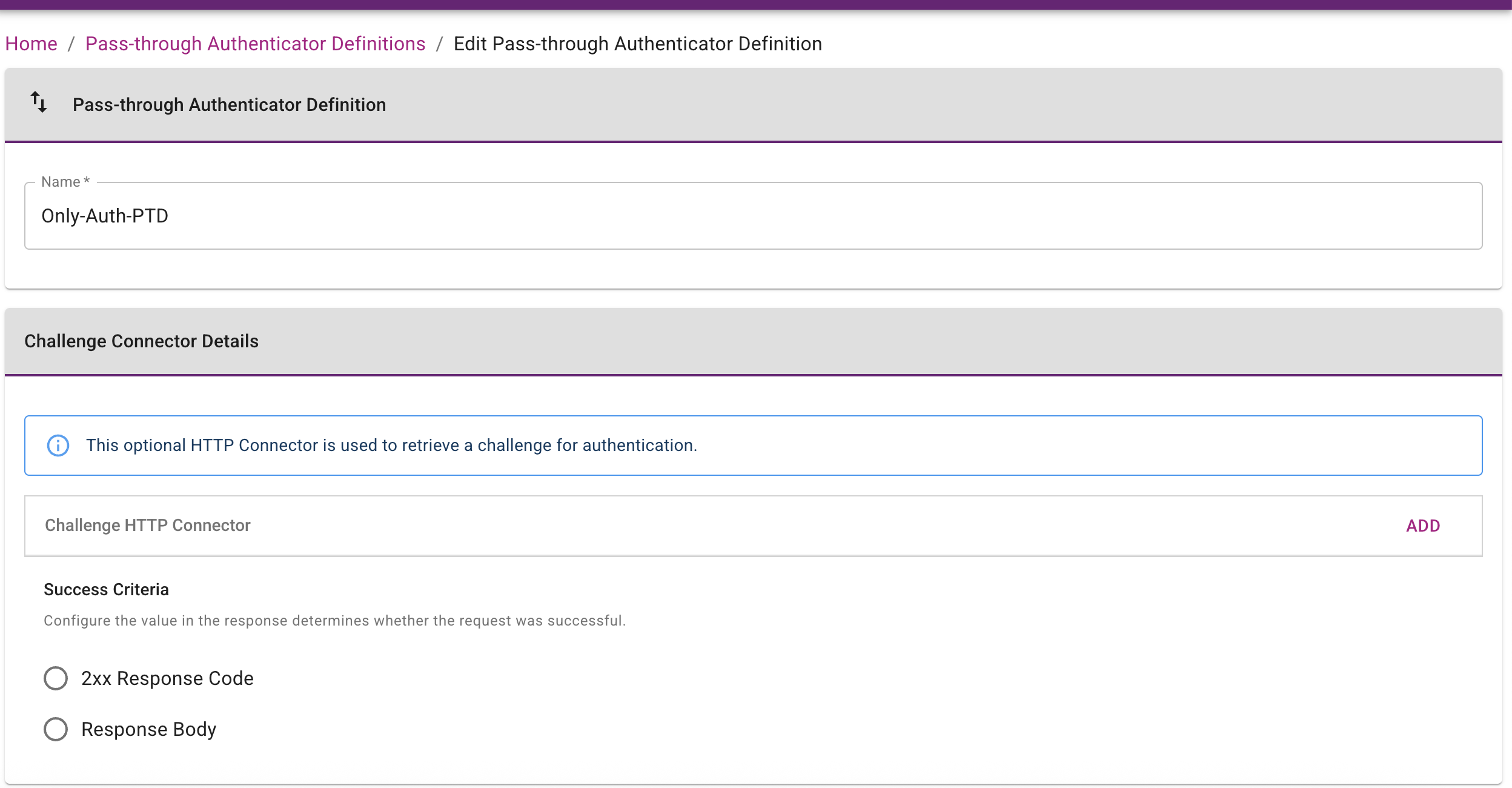
Create a pass-through authentication definition named Only-Auth-PTD without including a Challenge HTTP Connector.
-
Complete the configuration on the Pass-through Authenticator Definition page (Home > Configuration > Pass-through Authenticator Definition).
-
Set the Pass-through Authenticator Definition Name to
Only-Auth-PTD. -
Leave the Challenge HTTP Connector field blank.
-
Configure the Authenticate Connector Details to define the external service API call that IDaaS executes during the authentication flow. Define the Authenticate Connector as follows:
- Repository:
https://documentation.identity.entrust.com - External API:
https://api.eu.onfido.com/v3.6/applicants/ - Authorization header:
Token token=YOUR_API_TOKEN
This request gets an applicant record in Entrust IDV using
applicants IDprovided in the URL path. In this example, a result item is configured: Applicant ID (id).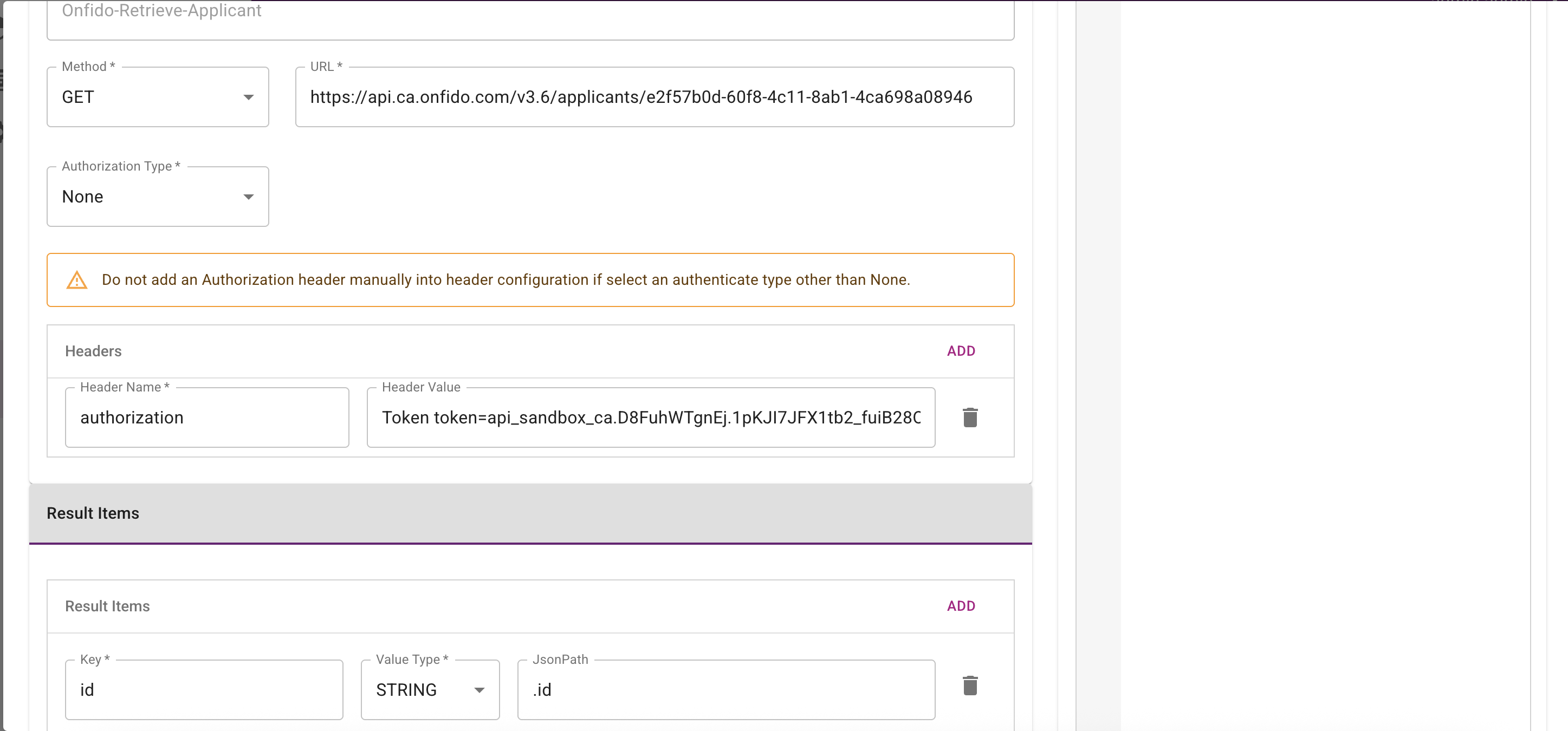
- Repository:
-
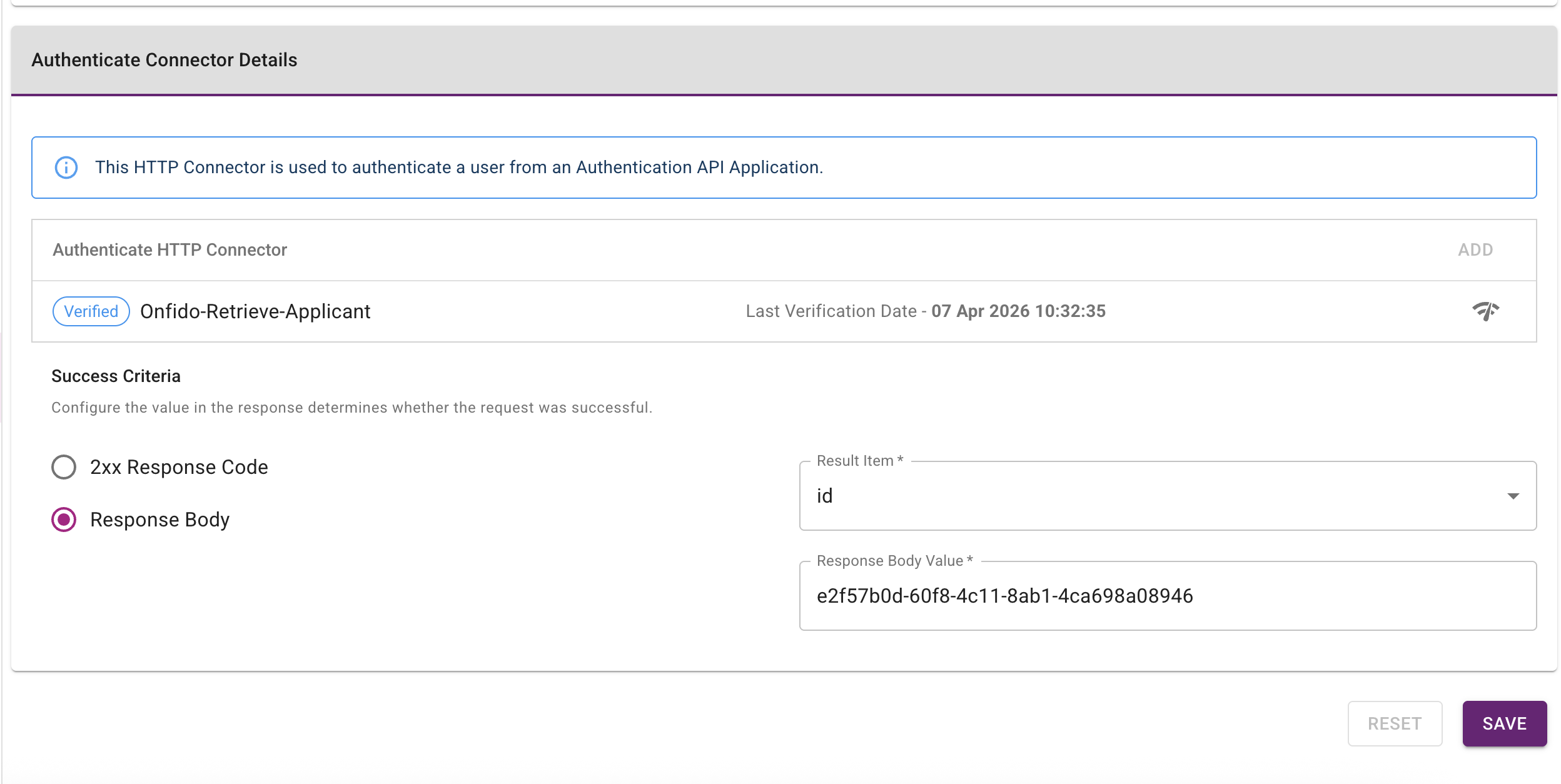
Define the Authenticate Connector Success Criteria. The specified value is compared to the value returned when the connector runs. If the two values match, the connector is considered successful.
Step 2: Create a group policy and assign a pass-through group
Create a group policy for pass-through authentication and assign it to Only-Auth-PTD.
-
Complete the configuration on the Group Policies page (Home > Policies > Group Policies).
-
Set the group policy Name to
pass-through-group-policy. -
Set the Group to
pass-through-group. -
Set the Setting Categories to Pass-through Authenticator.
-
Set the Pass-through Authentication Definition to
Only-Auth-PTD.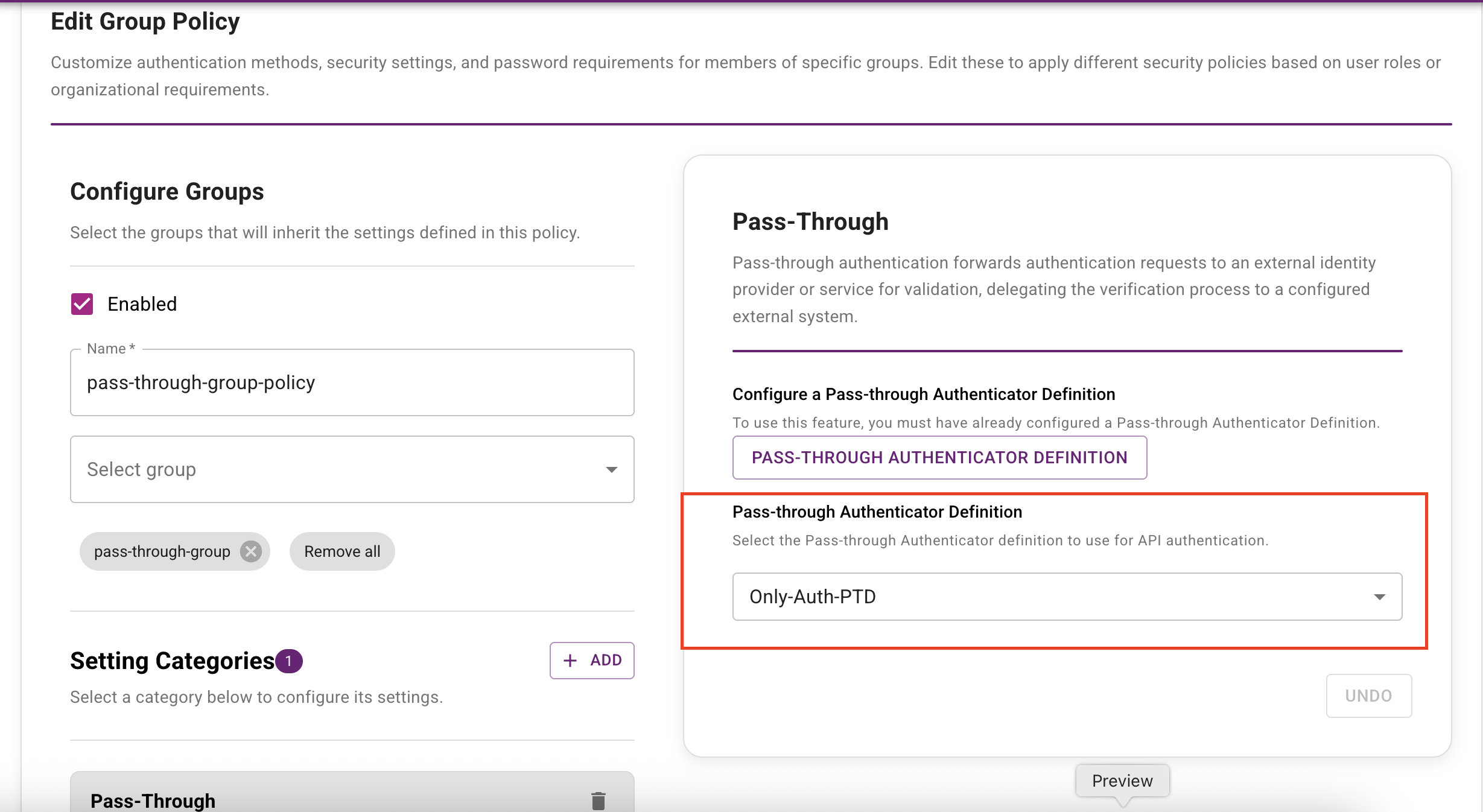
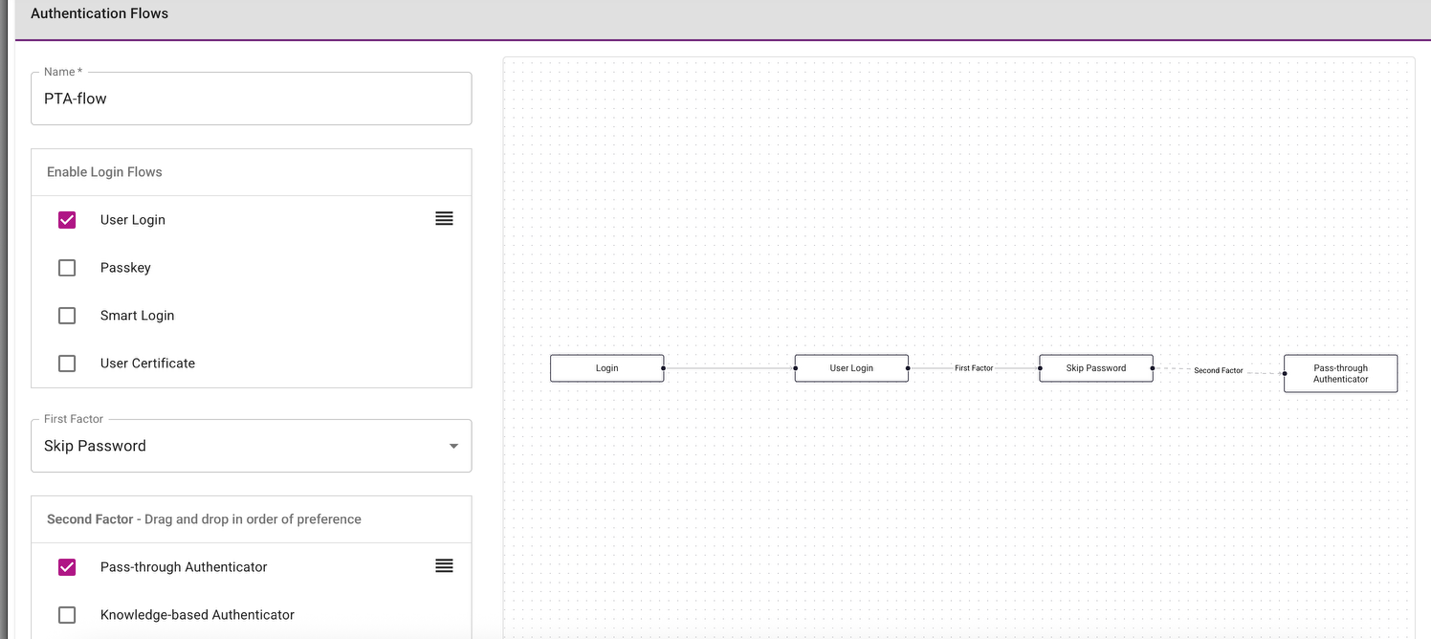
Step 3: Create a custom authentication flow
Pass-through authentication requires a custom authentication flow. The following example shows an authentication flow that uses pass-through authentication as the default second-factor authenticator.
Create a custom authentication flow on the Authentication Flows page (Home > Security > Authentication Flows).
Step 4: Create an authentication API and a resource rule
Create an authentication API and a resource rule that uses the custom authentication flow you created in Step 3: Create a custom authentication flow.
Go to Home > Security > Authentication Flows to complete this configuration.

Step 5: Use the IDaaS Authentication API to perform pass-through authentication
To use the IDaaS Authentication API for pass-through authentication, complete the following steps:
-
Call the Query API using the user ID of
pass-through-user. The response includesPASSTHROUGHas the authenticator in theauthenticatorTypesfield.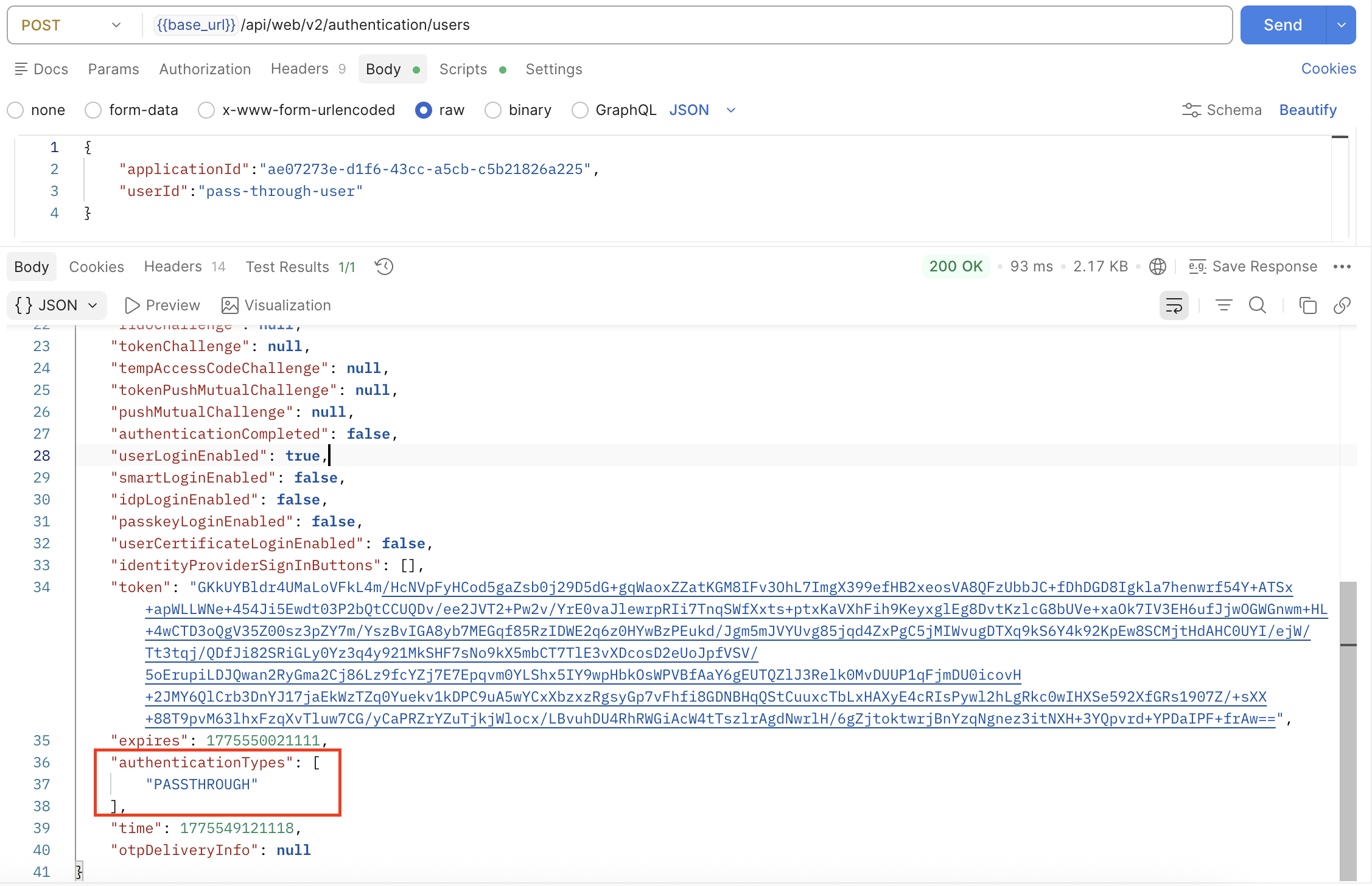
-
Call the User Challenge API. Because there is no challenge connector, the response has a
nullvalue forPassthroughAuthenticationResponsein the result.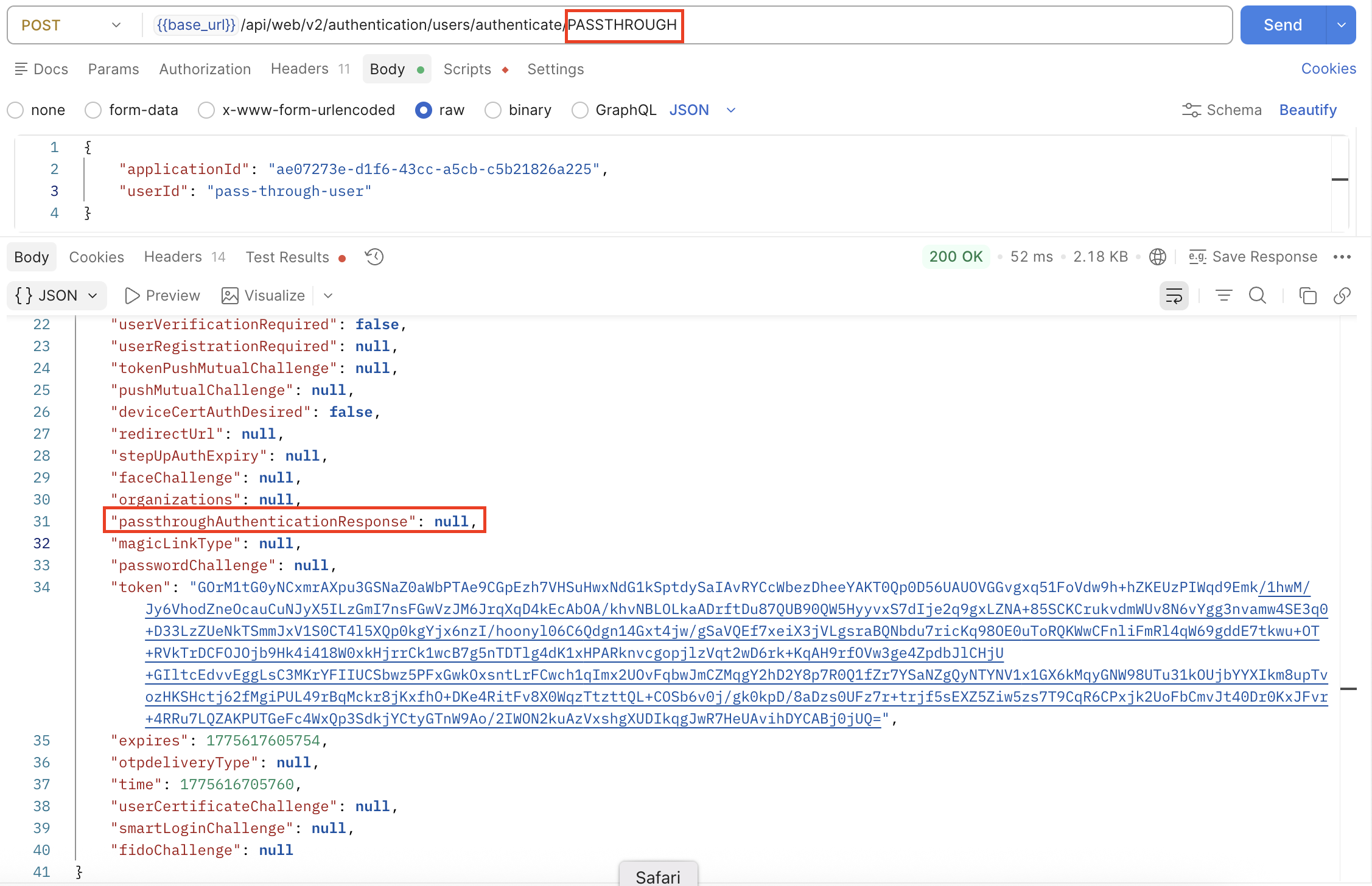
-
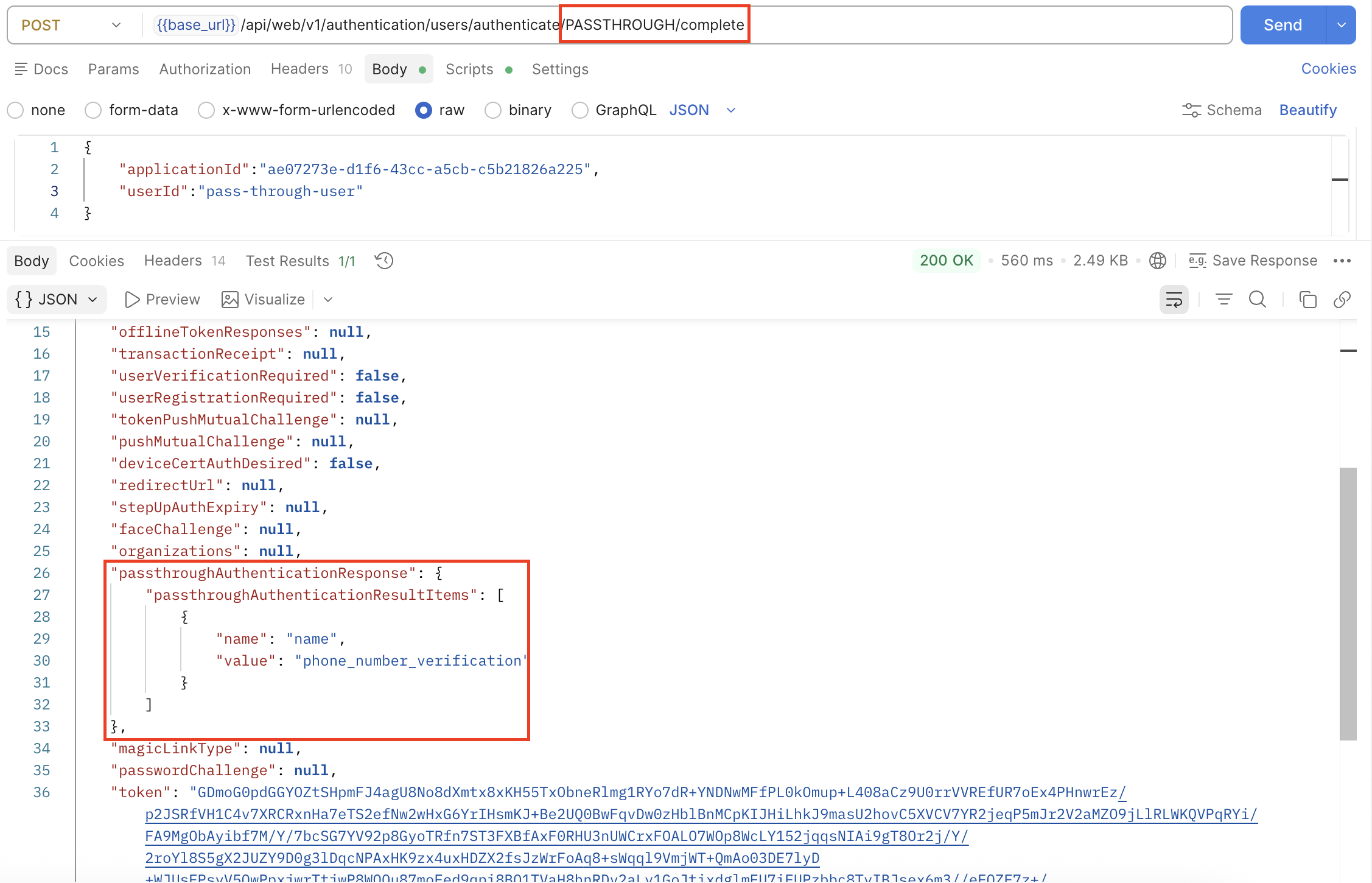
Call the User Authenticate API to complete the authentication process. This API includes a dedicated attribute,
passthroughAuthenticatorParms, which is a placeholder to the Authenticate Connector. The response returns details of the pass-through Authenticate Connector in thePassthroughAuthenticationResponseobject, including a list ofPassthroughAuthenticationResultItems. In this example, the returned items includeid(applicant ID).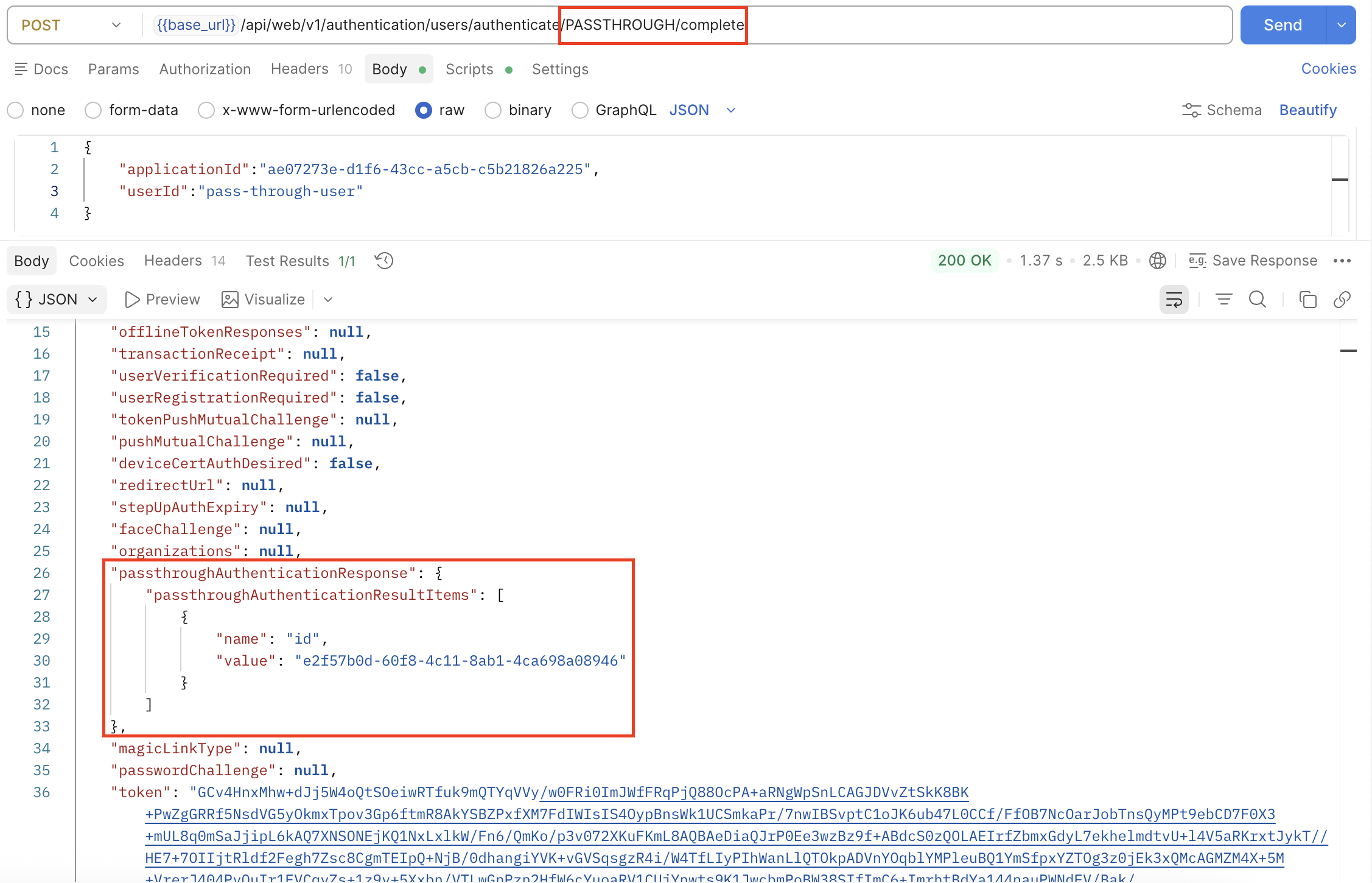
Example 2: Pass-through authenticator with a Challenge Connector
These steps demonstrate how to configure a pass-through authenticator that uses both a Challenge Connector and an Authenticate Connector using the Entrust Identity Verification API.
In this example:
- The Challenge Connector gets an applicant record in Entrust IDV and returns an
applicant_id. - The Authenticate Connector uses the
applicant_idfrom the challenge step to get an applicant's consents.
Step 1: Create a pass-through authentication definition
-
Complete the configuration on the Pass-through Authenticator Definition page (Home > Configuration > Pass-through Authenticator Definition).
-
Set the Pass-through Authenticator Definition Name to
Onfido-Challenge-And-Authenticate-PTD.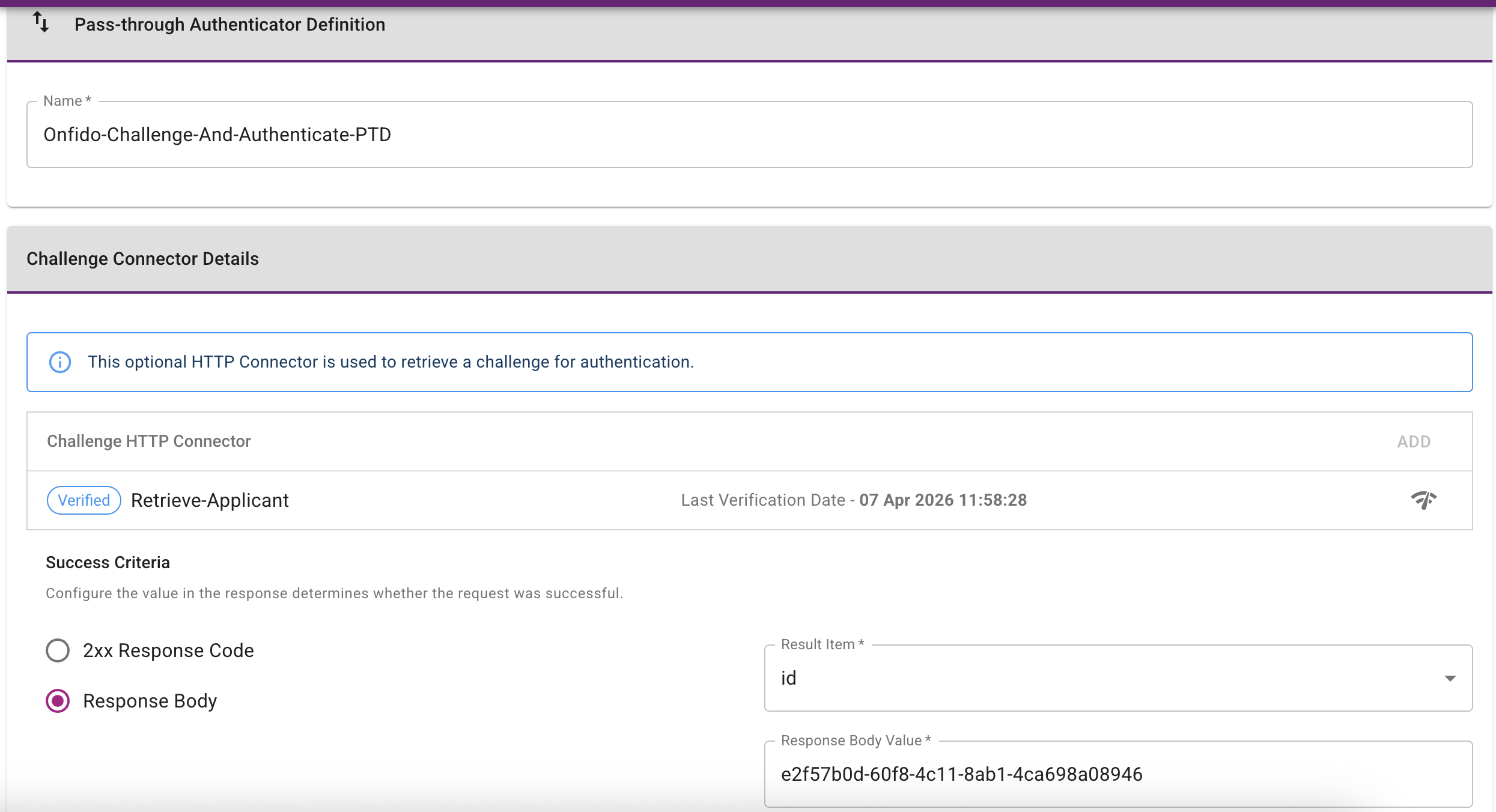
-
Define the Challenge HTTP Connector as follows:
- Repository:
https://documentation.identity.entrust.com - External API:
https://api.eu.onfido.com/v3.6/applicants/ - Authorization header:
Token token=YOUR_API_TOKEN
This request gets an applicant record in Entrust IDV using
applicants IDprovided in the URL path. A result itemidis configured.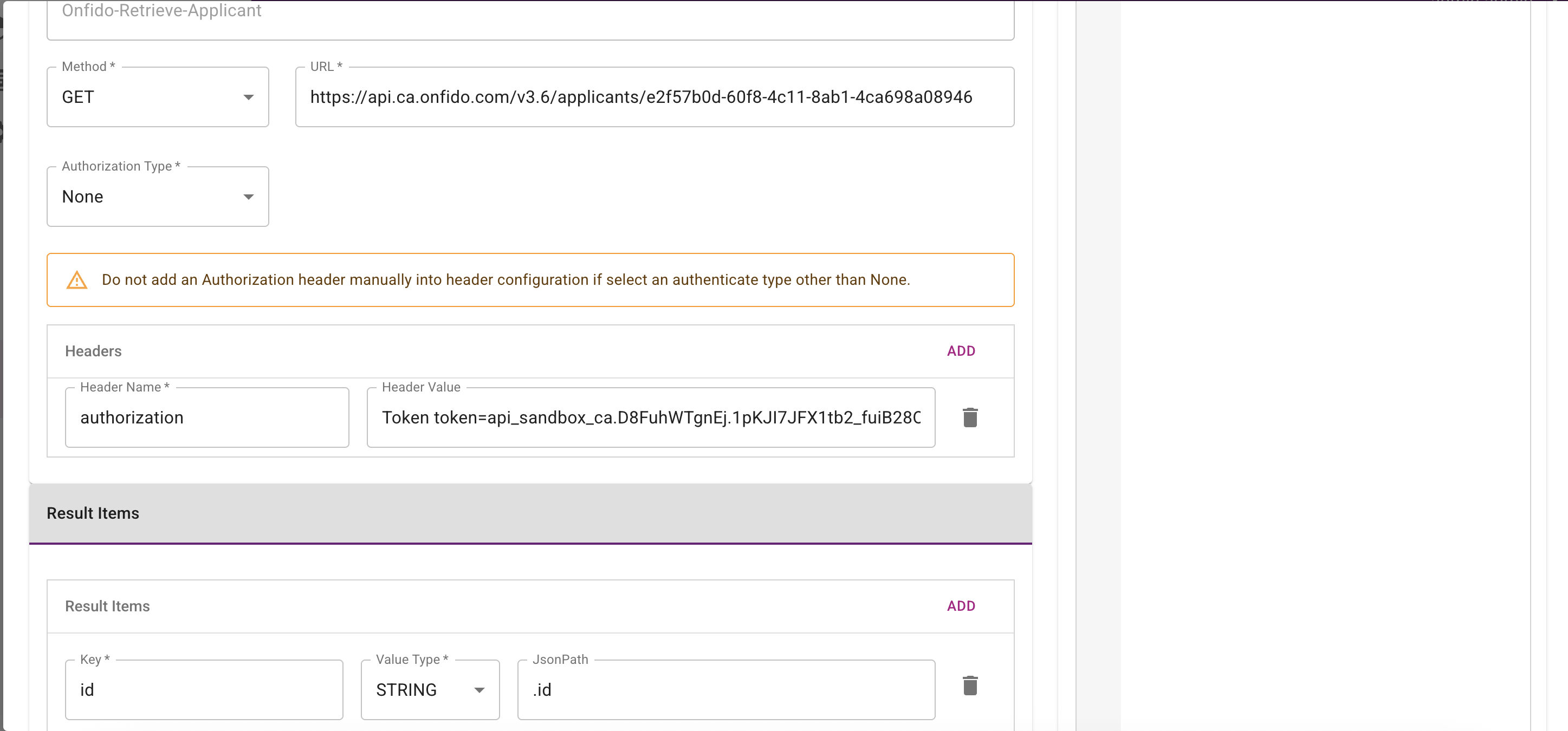
- Repository:
-
Define the Challenge Connector Success Criteria. The specified value is compared to the actual value returned when the connector runs. If the two values match, the connector is considered successful. In this example, the comparison is made against the
idresult item.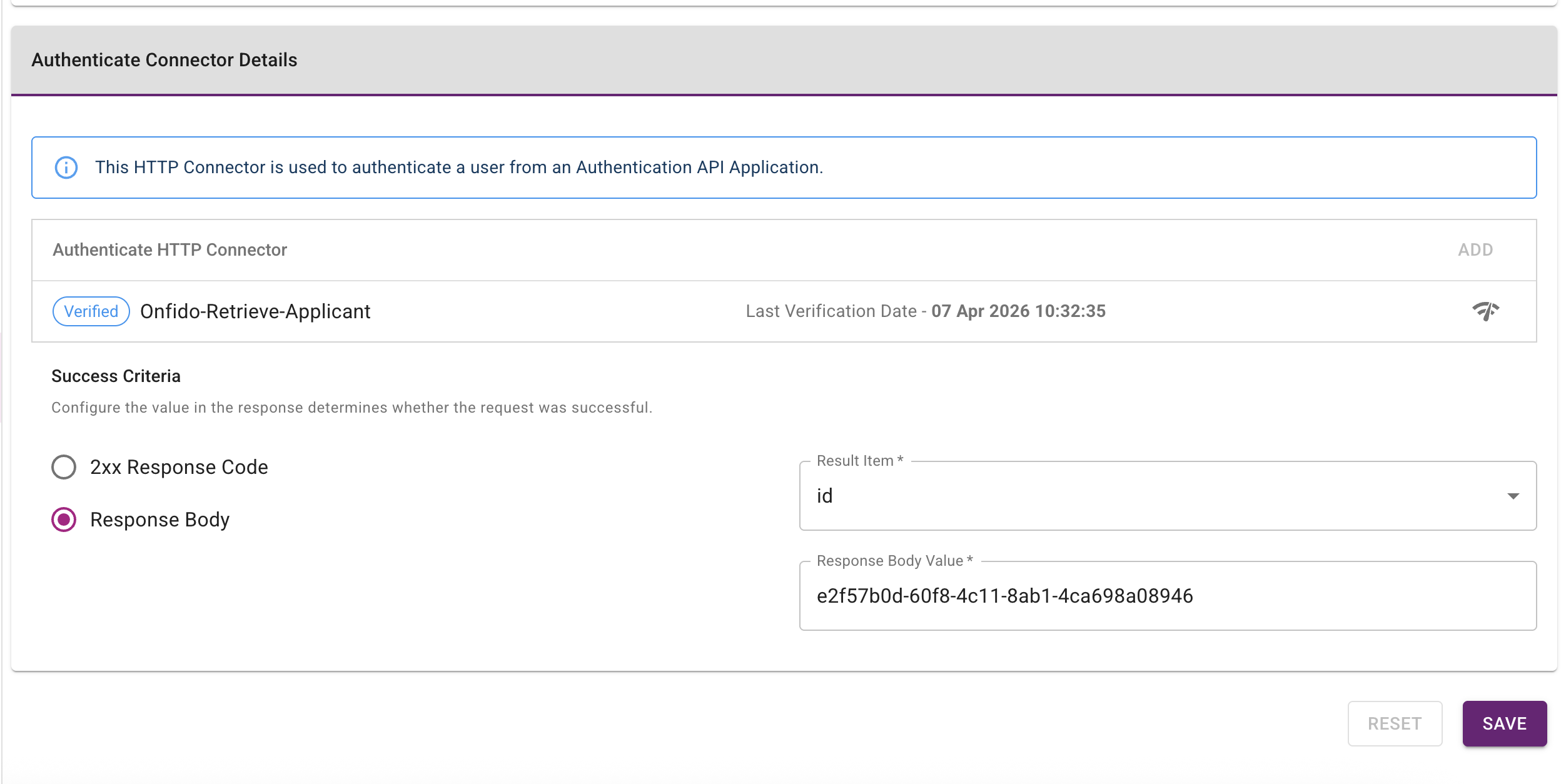
-
Define the Authenticate Connector Details to specify the external API call that IDaaS executes during the authentication flow:
- Repository:
https://documentation.identity.entrust.com - External API:
https://api.eu.onfido.com/v3.6/workflow_runs/ - Authorization header:
Token token=YOUR_API_TOKEN
This request gets an applicant's list of consents. A result item
nameis configured.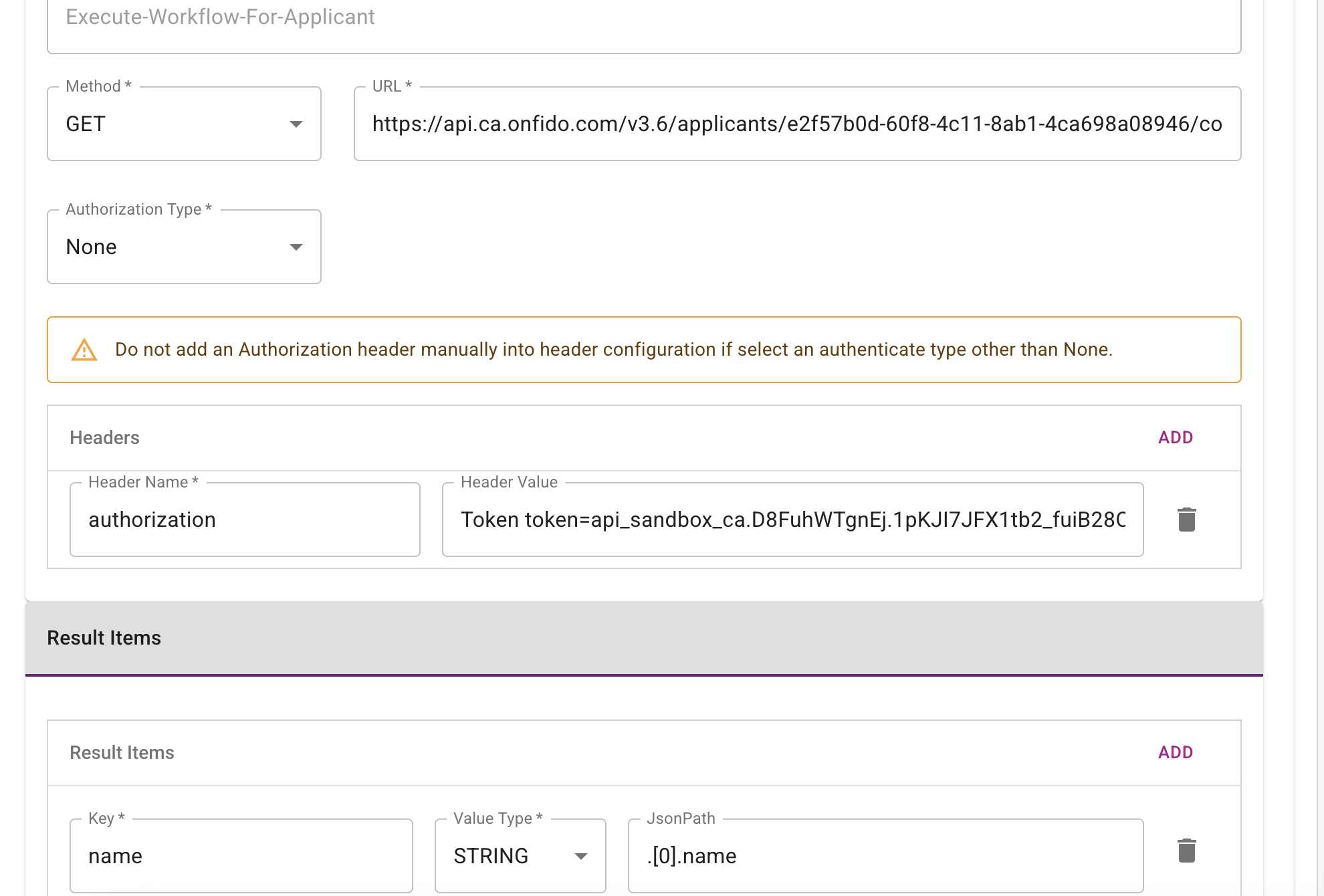
- Repository:
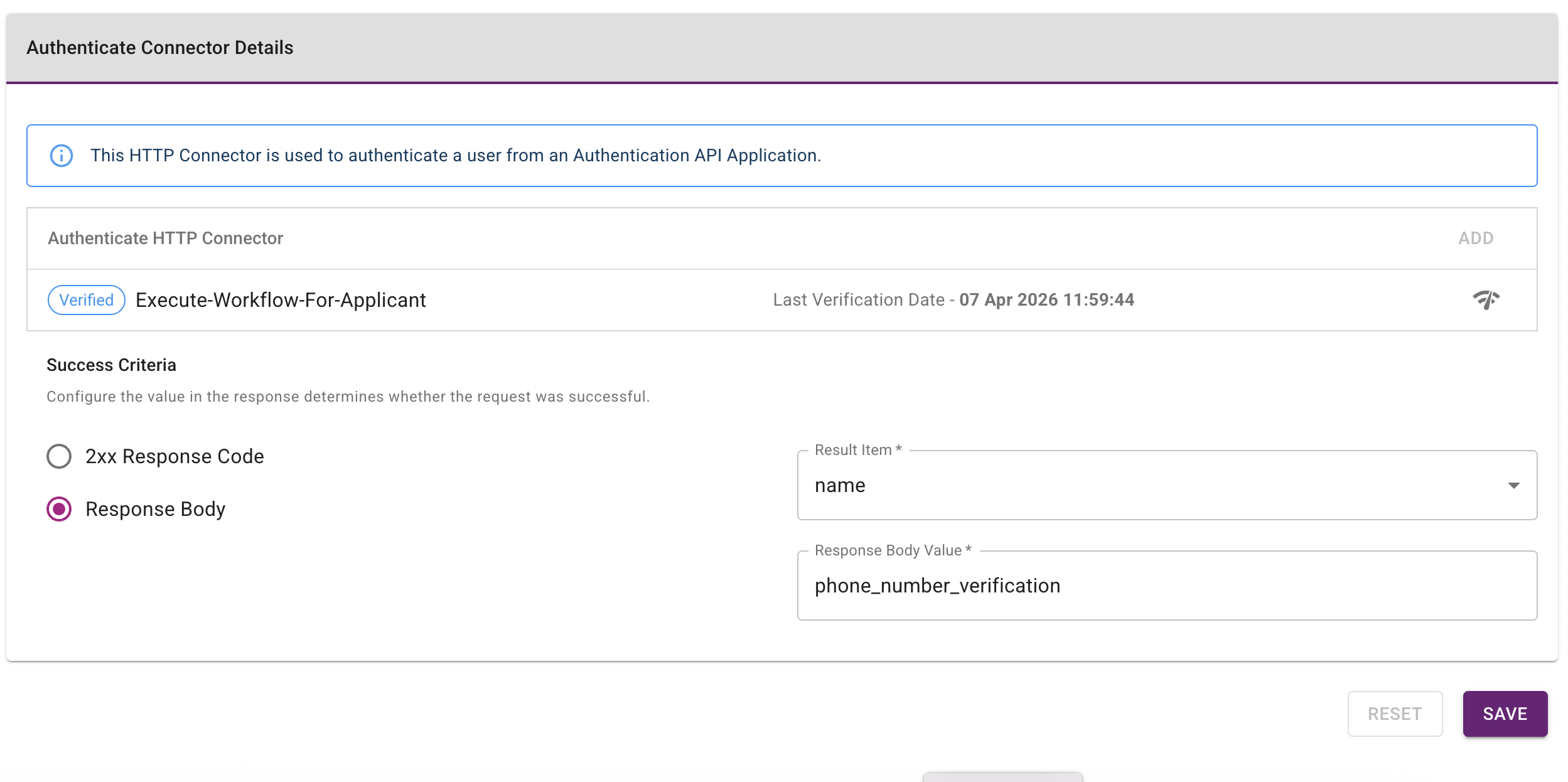
-
Define the Authenticate Connector Success Criteria. The specified value is compared to the value returned when the connector runs. If the two values match, the connector is considered successful.
Step 2: Create a group policy and assign a pass-through group
Create a group policy for pass-through authentication and assign it to Onfido-Challenge-And-Authenticate-PTD.
-
Complete the configuration on the Group Policies page (Home > Policies > Group Policies).
-
Set the group policy Name to
pass-through-group-policy. -
Set the Group to
pass-through-group. -
Set the Setting Categories to Pass-through Authenticator.
-
Set the Pass-through Authentication Definition to
Onfido-Challenge-And-Authenticate-PTD.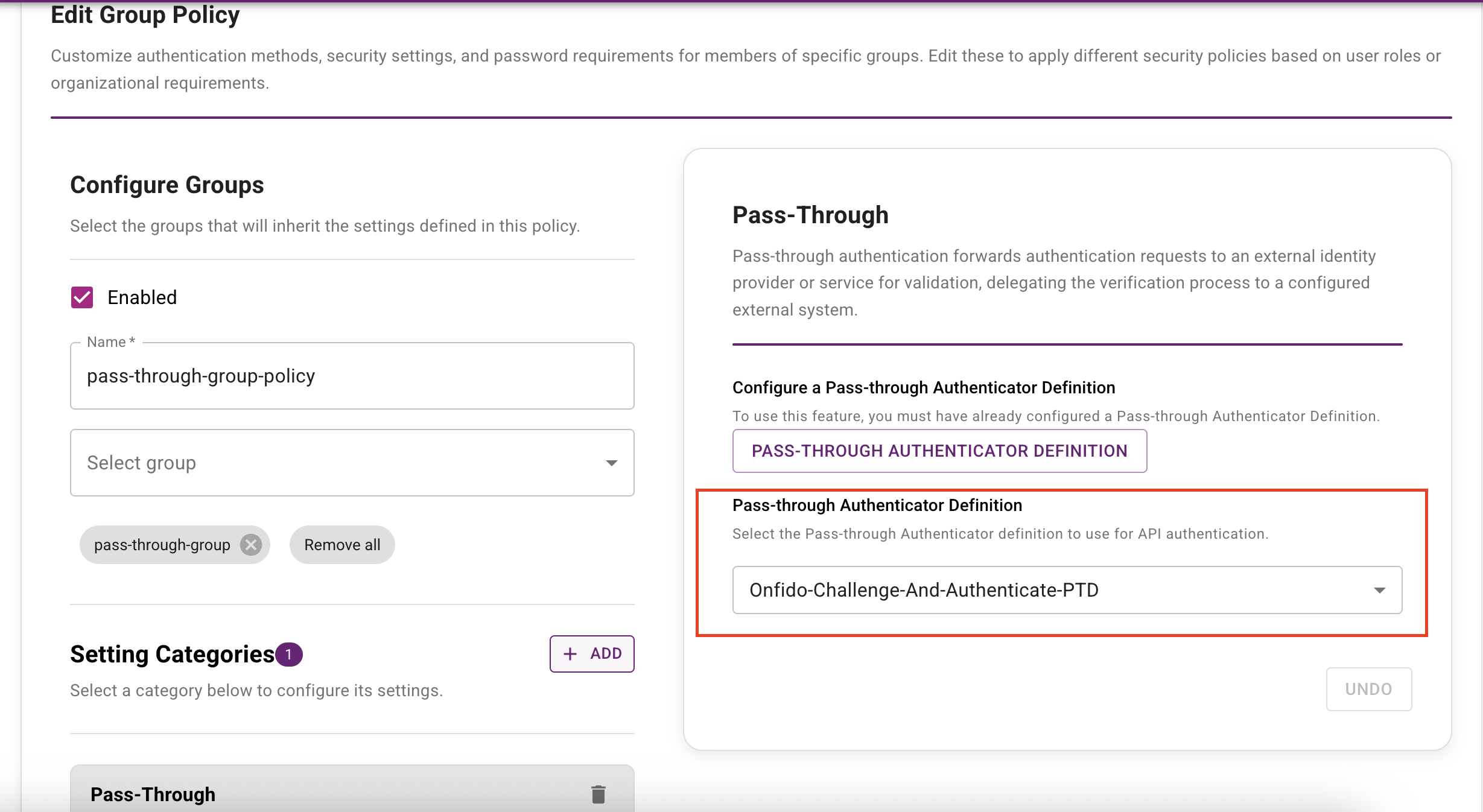
Step 3: Create a custom authentication flow
Pass-through authentication requires a custom authentication flow. The following example demonstrates a flow that uses pass-through authentication as the default second-factor authenticator.
Create a custom authentication flow on the Authentication Flows page (Home > Security > Authentication Flows).
Step 4: Create an authentication API and a resource rule
Create an authentication API and a resource rule that uses the custom authentication flow you created in Step 3: Create a custom authentication flow.
Go to Home > Security > Authentication Flows to complete this configuration.
Step 5: Use the IDaaS Authentication API to perform pass-through authentication
To use the IDaaS Authentication API for pass-through authentication, complete the following steps:
-
Call the Query API with the user ID of
pass-through-user. The response includesPASSTHROUGHas the authenticator in theauthenticatorTypesfield. -
Call the User Challenge API. The response returns details of the pass-through Challenge Connector in the
PassthroughAuthenticationResponseobject, including a list ofPassthroughAuthenticationResultItems. In this example,id(applicant ID) is returned aspassthroughAuthenticationResultItems.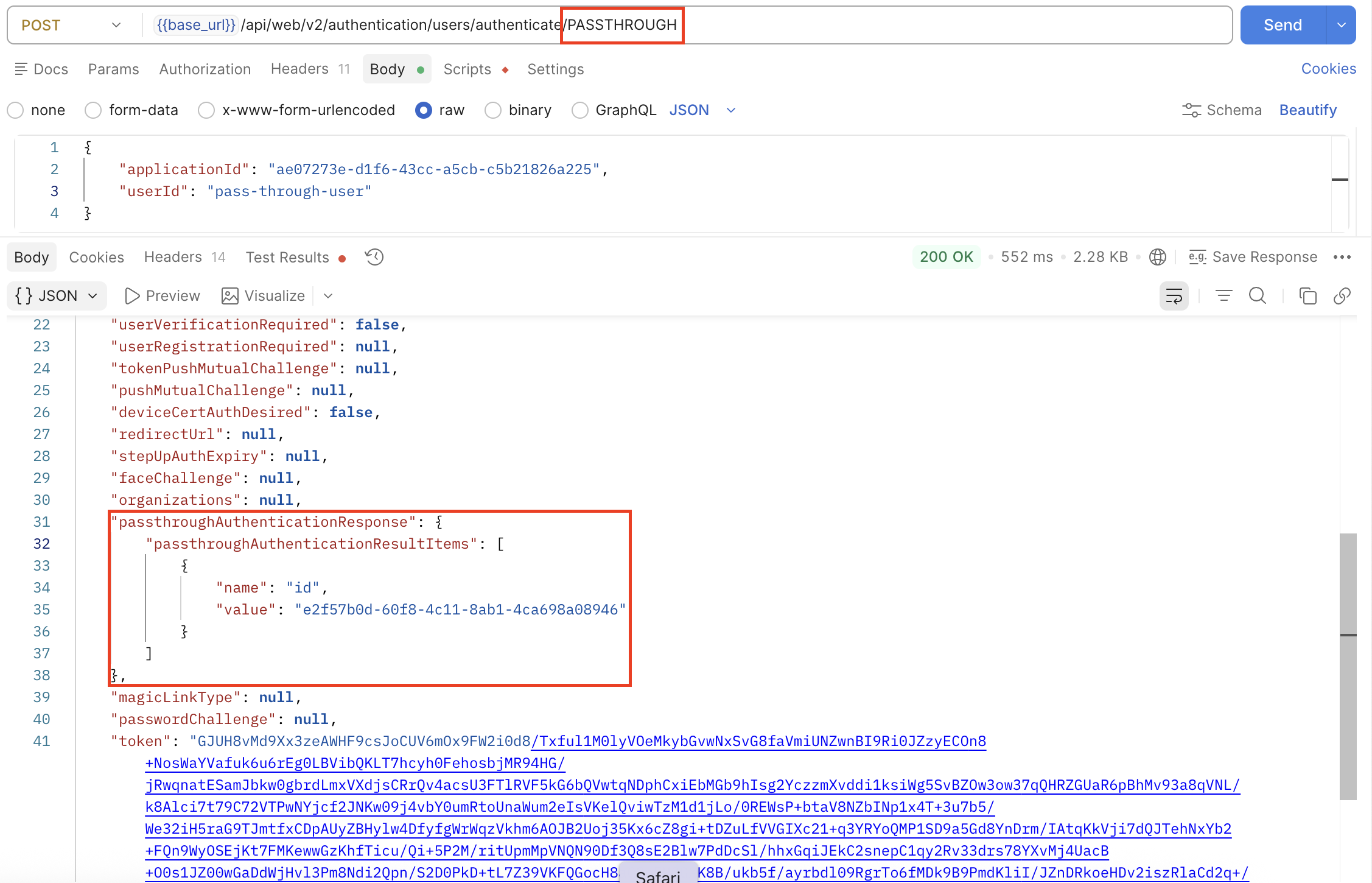
-
Call the User Authenticate API to complete the authentication process. The response returns details of the pass-through Authenticate Connector in the
PassthroughAuthenticationResponseobject, including a list ofPassthroughAuthenticationResultItems. In this example, the returned items include the list of consents of an applicant.