ForgeRock
You can configure ForgeRock to use IDaaS for multi-factor authentication.
When performing this integration, you copy and paste content from one application to the other. Open ForgeRock in one browser window and IDaaS in another to make copying and pasting easier.
Integrate ForgeRock OIDC with IDaaS
To integrate ForgeRock OIDC with IDaaS, complete the following steps:
- Step 1: Obtain the Redirect URL from ForgeRock Access Management
- Step 2: Add ForgeRock OIDC to IDaaS
- Step 3: Configure claims
- Step 4: Configure customizations
- Step 5: Add a resource rule
- Step 6: Optional. Add a resource server
- Step 7: Add IDaaS to ForgeRock OIDC
- Step 8: Test the integration
Step 1: Obtain the Redirect URL from ForgeRock Access Management
-
Log in to ForgeRock Access Manager.
-
Click Top Level Realm. The Realm Overview page appears.
-
In the navigation pane, click Authentication > Trees. The Trees page appears.
-
Click Create Tree.
-
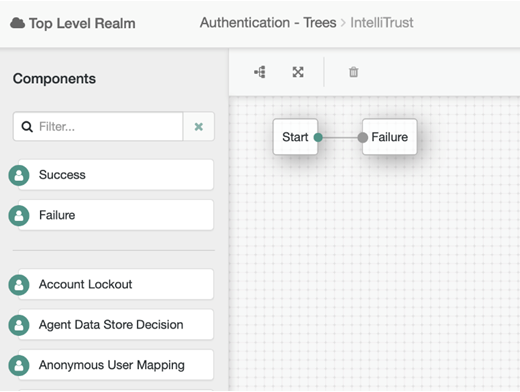
Enter a Tree Name and click Create. A blank tree appears that you can customize.
-
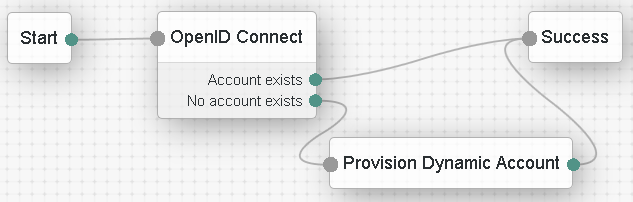
Under Components, click and drag the following nodes to the tree:
- Success
- OpenID Connect
- Provision Dynamic Account
infoDepending on where you store your users, you might use Provision IDM Account instead of Provision Dynamic Account.
-
Remove the Failure node by selecting it and then clicking .
-
Wire the nodes as shown in this diagram. To wire them, click the red dot and drag to connect it to the connecting dot. The red dots change to green when they are connected.
-
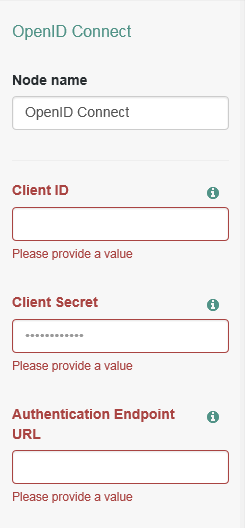
Click the OpenID Connect node to open the OpenID Connect dialog box.
-
Scroll down to Redirect URL and copy the value. You need to paste this URL into IDaaS.
-
Leave OpenID Connect dialog box open as you will need to copy values from IDaaS into this dialog box.
Step 2: Add ForgeRock OIDC to IDaaS
-
Log in to IDaaS.
-
Click > Security > Applications. The Applications List page appears.
-
Click Add. The Select an Application Template page appears.
-
Do one of the following:
- Click OIDC and select ForgeRock OIDC from the list of OpenID Connect and OAuth Cloud Applications.
- In the Search bar, enter a search option to filter for the application you want to add to IDaaS.
-
Click ForgeRock OIDC. The Add ForgeRock OIDC page appears.
-
If required, modify the following App Settings:
- Application Name
- Application Description
-
Configure the OIDC Settings.
-
Click to copy the Client ID that is generated when you create the application on IDaaS. You cannot modify the Client ID. You can then paste the Client ID value into the required field of your client ForgeRock OIDC application account settings.
-
Select Client Secret Basic from the Client Authentication Method drop-down list. When using the token, PAR, or revocation endpoints, clients use this authentication method to authenticate to the Authorization Server.
-
Do one of the following:
-
Copy (or update and copy) the Client Secret value. You can then paste the Client Secret value into the required field of your client OIDC application account settings.
-
Optional. Set and copy the Client Secret (Alternative) value as an alternative option to support client secret rollover. You can then paste the Client Secret (Alternative) value into the required field of your client OIDC application account settings.
noteYou can define your own Client Secret values. However, Entrust recommends that you use the strong secret value provided. You can also optionally view or regenerate a new client secret.
-
-
Set the Reauthentication Time (Max Authentication Age) to the maximum amount of time that can elapse before a user must reauthenticate to log in. This feature is disabled if the field is left blank.
-
Select the OIDC Signing Certificate used to connect to ForgeRock.
-
From the ID Token Signing Algorithm drop-down list, select RS256 as the signing algorithm used to sign with ID Token during authentication.
-
From the UserInfo Signing Algorithm drop-down list, select RS256.
-
From the Access Token Signing Algorithm drop-down list, select RS256.
-
Click Add next to Login Redirect URIs.
-
In the Add Login Redirect URI field, enter the Redirect URI that you copied in Step 1: Obtain the Redirect URL from ForgeRock Access Management.
-
Optional: Enter the Initiate Login URI to allow users to access the application from IDaaS.
The Login URI is the location from which authentication to the ForgeRock OIDC application through IDaaS can be initiated.
-
Click Add to add a Login Redirect URI.
The URI is the location a user is redirected to after being provided or denied access to the ForgeRock OIDC. The value can be a URL, and you can add more than one value.
noteThe login redirect URI hostname is added as a valid CORS origin for OIDC processing.
-
Under Supported Grant Types, select Authorization Code. The Grant Type tells IDaaS what flow to use for returning authorization responses.
-
From the Authorization Code PKCE Code Challenge Method drop-down list, select S256 as the method used with PKCE during authentication.
-
Do not modify the current setting for the Subject ID Attribute that is included in the ID token and access token to identify the user being authenticated.
-
Select Require Consent to require that users respond to a consent prompt for each request.
-
Optional. Enter a Custom Consent Message to include a message to users when consent is requested.
-
From the ID Token Signing Algorithm drop-down list, select RS256 as the signing algorithm used to sign with ID Token during authentication.
-
The authorization request uses Supported Scopes to establish a connection between IDaaS and the ForgeRock OIDC application. Supported Scopes are selected by default. If you disable Your unique identifier, the ForgeRock OIDC application strictly uses an access token to access a resource server API on behalf of a user.
noteClick the arrow next to each scope to see the list of Implied Claims included in the scope. The list of Implied Claims is defined by OpenID Connect and cannot be modified. Every Implied Claim included in the scopes you select under Supported Scopes should have an associated IDaaS user attribute so that the attribute is returned as part of the OIDC tokens sent back to the client. For example, if you select Address as a Supported Scope, then you must define an IDaaS user attribute for each Implied Claim associated with Address. See Create and manage user attributes.
-
-
Configure the Advanced Settings.
-
Select Enable Organizations and Domain-Based Identity Providers to allow organization information to be returned in OIDC claim values when users log in. When enabled, if users are associated with more than one organization and an organization has not been requested, users can select their organizations after they authenticate to their application.
noteWhen organizations are enabled, the corresponding OIDC claims must also be configured.
-
Enter the Default Resource/Audience Request Value to include this value as the resource or audience parameter for every authorization request.
-
Select Include authentication time with all ID tokens to include the authentication time with all tokens.
-
From the ID Token Signing Algorithm drop-down list, select the signing algorithm that is used to sign the ID tokens during authentication.
-
Set the ID Token Timeout to the time (in minutes) that the ID token is valid before it expires.
-
From the Userinfo Signing Algorithm drop-down list, select the signing algorithm used to sign the user info data during authentication.
-
Set the Userinfo Access Token Timeout to the time (in minutes) that the access token is valid before it expires.
-
-
Click Save.
-
Proceed to Step 3: Configure claims.
Step 3: Configure claims
-
Click the Claims tab. The Claims page appears.
-
If required, add additional Supported Claims to map OIDC claims to IDaaS user attributes.
The supported claims define the claims that are requested by the client during an authorization request. A claim is an IDaaS user attribute, for example,
first name. The user attribute must be included if that claim is requested by the client during an authorization request. The required claims depend on the OIDC application that you are configuring on IDaaS.You can group claims, for example, the default claim, name, includes the user attribute
First Name, a text-based value of a space and the user attribute value ofLast Nameso that the claim returned to the client is First Name<space>Last Name, for exampleAlice Gray. -
To add a claim:
-
Ensure that you have already created the required User Attributes in IDaaS (see Create and manage user attributes).
-
Click . The Add Claim dialog box appears.
-
In the Claim Name field, do one of the following:
- Select the Claim Name from the drop-down list.
- Type a Claim Name to create a new custom claim.
-
In the Enter the Claim value expected by the Service Provider field, enter the following, as required:
- User Attribute Value An IDaaS user attribute (see Create and manage user attributes).
- Text Based Value. A text based value. For example, to add a space between two claims or add text information.
- Related Value Include user group or authenticator attributes. See Configure OIDC claim to include user authenticators or groups.
Example:
some text <first Name> <Last Name> [Groups] -
Select Always Return with User Info to always return the user information with the claim.
-
Select Always Return with ID Token to always return the ID Token with the claim.
-
Click Add.
infoIf required, click next to the claim and make the required changes. Click to delete a claim.
-
-
Click Save.
-
Proceed to Step 4: Configure customizations.
Step 4: Configure customizations
- Click the Customization tab. The Customization page appears.
- Deselect Enable Go Back Button if you do not want users to be able to go back to the application login page to log in.
- Optional: Select Respond Immediately for Unsuccessful Responses to return to the application immediately after a login failure, rather than allow the user to try again with a different user ID.
- Optional: Deselect Show Login Redirect URL in My Profile to hide the application from a user's profile.
- Optional. Add a custom application logo, as follows:
- Click next to Application Logo. The Upload Logo dialog box appears.
- Click to select an image file to upload.
- Browse to select your file and click Open. The Upload Logo dialog box displays your selected image.
- If required, resize your image.
- Click OK.
- Select the Login Options that appear to users during login. You must select at least one. For details on each login option and requirements, see Manage login options.
- Click Save.
- Proceed to Step 5: Add a resource rule.
Step 5: Add a resource rule
Step 6: Optional. Add a resource server
- Click the Resource Servers tab.
- Click Add Resource Server.
- Follow the instructions in Add an API/URL resource server.
Step 7: Add IDaaS to ForgeRock OIDC
-
In ForgeRock, open the OIDC Connect dialog box.
-
In the OIDC Connect dialog box enter the Client ID and Client Secret as follows:
- In IDaaS, click > Resources > Applications. The Applications List page appears.
- Click ForgeRock OIDC. The Edit ForgeRock OIDC page appears.
- Click Next to go to the ForgeRock OIDC General Settings in IDaaS. Keep this page open.
-
Go to ForgeRock and in the ForgeRock OIDC Connect dialog box, paste the following from IDaaS:
- In the Client ID field, paste the IDaaS client ID.
- In the Client Secret field, paste the IDaaS client secret.
-
Return to the Edit ForgeRock OIDC page in IDaaS and click Cancel to close the page. You are returned to the Applications List page.
-
In the IDaaS Applications List page, under ForgeRock OIDC application, click OIDC Configuration. The OIDC Configuration page appears.
-
Leave the OIDC Configuration page open as you need to copy information from this page to ForgeRock OIDC Connect dialog box.
-
Paste the following from the IDaaS OIDC Configuration into the ForgeRock OpenID Connect dialog box:
- In the Authentication Endpoint URL, enter the Authorization Endpoint from IDaaS.
- In the Access Token Endpoint field, enter the Token Endpoint from IDaaS.
- In the User Profile Service URL, enter the Userinfo Endpoint from IDaaS.
-
Leave the IDaaS OIDC Configuration page open as you will need to return to it later in this procedure.
-
In the ForgeRock OIDC Connect dialog box, do the following:
- In the OAuth Scope field, change the scope to match the IDaaS configuration, for example, openid, profile, or email. If you want to use more than one, enter each one in the field separated by a space. For example: openid profile email
- Enter a name for the Social Provider, for example, IDaaS.
-
Update the ForgeRock mappers as follows (delete any existing values and replace them with the new values):
noteThis configuration is valid for an out of the box ForgeRock AM backed by a local embedded directory. Your mappings may require changes depending on your setup.
-
In the Account Mapper field, enter:
org.forgerock.openam.authentication.modules.common.mapping.JsonAttributeMapper|*|IDaaS- -
In the Attribute Mapper field, click x to delete the existing entry, then enter the new Attribute Mapper value and press Enter.
org.forgerock.openam.authentication.modules.common.mapping.JsonAttributeMapper|uid|IDaaS- -
In the Account Mapper Configuration, delete the existing sub key (if one exists) and then click Add.
-
Add the following key and value.
- sub = uid
-
Click + after entering the key and value.
-
In the Attribute Mapper Configuration, delete the existing sub key (if one exists) click Add and the following keys and values.
You must click + after entering each key and value pair to add it to the Attribute Mapper configuration.
- sub = uid
- name = cn
- given_name = givenName
- family_name = sn
- email = mail
-
-
Return to the IDaaS OIDC Connection page.
-
Paste the following from the IDaaS OIDC Configuration into the ForgeRock OpenID Connect dialog box:
-
In the Token Issuer field, enter the Issuer from IDaaS.
-
In the OpenID Connect Validation Value field, enter the Openid Configuration from IDaaS.
-
Click OK to close the IDaaS OIDC Configuration page.
-
Click Save to save the IDaaS mapping tree in ForgeRock.
Step 8: Test the integration
- Log out of both IDaaS and ForgeRock.
- Open your ForgeRock OIDC instance using the new authentication tree, for example:
https://forgerockserver>.com:8443/openam/?service=IDaaS(whereservice=<tree name>)
- You are redirected to IDaaS for authentication.
- Upon successful authentication, you are logged in to ForgeRock.