Add Access Controls
Access Controls further streamline the users that can access the protected resource with this resource rule.
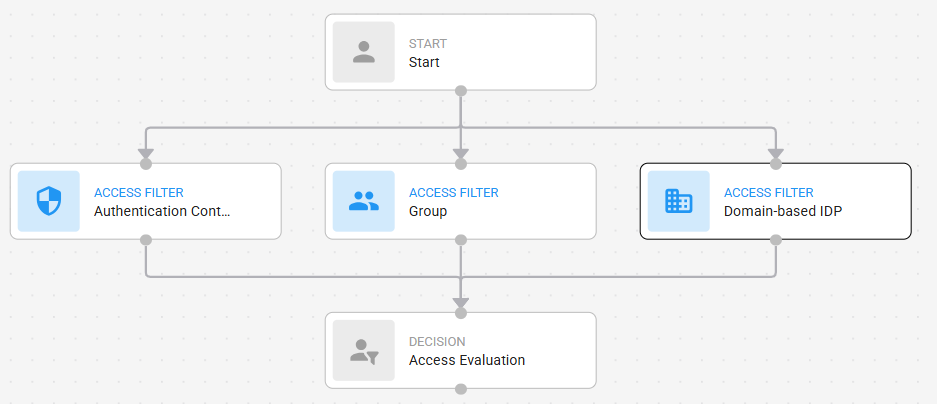
Access Filter connections in the graph
Connect Access Filters to the Start node and then connect them to the Access Evaluation node as shown in the following figure.
Authentication Context Reference (ACR)
This setting is available for resource rules that protect SAML, OIDC and OAuth, Authentication API, and Identity as a Service applications. It allows a user to authenticate using this resource rule if the authentication request from the client request contains specified Authentication Context Reference (ACR) values, any ACR value, or does not include an ACR value. This feature allows the client to influence how the user is authenticated based on ACR requests. For more information, see Add Authentication Context References.
ACR filters select whether the resource rule is eligible for a request before risk factors are evaluated.
| Configuration | Result |
|---|---|
| Do not add an ACR Access Filter node | The rule can apply whether or not the request includes ACR. |
| Add the node and select No ACR | The rule applies only to requests that do not include ACR. |
| Add the node, select ACR, and add values | The rule applies only when the request includes those values. |
| Add the node, select ACR, and add none | The rule applies to requests that include any ACR value. |
Create ACR access filters when an application can request different assurance levels. For example, an application can send a Low Assurance ACR for ordinary access and a High Assurance ACR for sensitive access. The Low Assurance ACR can match one resource rule with a lower-friction authentication flow, while the High Assurance ACR can match another resource rule that requires stronger authentication.
Configure Authentication Context Reference
- Click the ACR Access Filter node. The Authentication Context Reference settings appear.
- Click ACR or No ACR, as required.
- If you click ACR, the resource rule considers users with an authentication context specified in their requests.
- If you click No ACR, the resource rule considers users without an authentication context specified in their requests.
- Select the ACR to Add from the drop-down list.
If you add an ACR node and do not specify an ACR, then by default all requests with any ACR are evaluated by the resource rule.
Domain-based IDP
This setting is available for resource rules configured for the User, User Edit, and Administrator portals, and SAML and OIDC and OAuth applications. It allows a user to authenticate using this resource rule if they belong to a specified Domain-based IDP. For more information, see Manage Identity Providers.
Domain-based IdP filters select whether the resource rule is eligible based on the user's domain-based Identity Provider status before risk factors are evaluated.
| Configuration | Result |
|---|---|
| Do not add a Domain-based IdP Access Filter node | The rule can apply whether or not the user has a domain-based IdP. |
| Add the node and select No Domain-based IdP | The rule applies only to users without a domain-based IdP. |
| Add the node, select Domain-based IdP, and add providers | The rule applies only when the user matches one of the selected domain-based IdPs. |
| Add the node, select Domain-based IdP, and add no providers | The rule applies to users with any domain-based IdP. |
Create a Domain-based IdP access filter when users from one domain must authenticate through a specific external Identity Provider. For example, employees with the example.com domain can match a rule that uses the corporate Identity Provider login flow. Contractors who do not have a domain-based Identity Provider can match a No Domain-based IdP rule that uses a User Login flow with IDaaS authenticators.
Configure a Domain-based IdP
- Click the Domain-based IdP Access Filter node. The Domain-based IdP settings appear.
- Click Domain-based IdP or No Domain-based IdP, as required.
- If you click Domain-based IdP, the resource rule evaluates users associated with Domain-based IdPs.
- If you click No Domain-based IdP, the resource rule evaluates users not associated with any Domain-based IdPs.
- Select the Identity Provider to Add from the drop-down list. See Manage Identity Providers and webhooks.
If you do not add a Domain-based IdP, by default the resource rule evaluates users associated with any Domain-based IdP.
Group
Use this setting to restrict access to users belonging to specific groups. If you want all users to be evaluated by the resource rule, do not add this feature to the graph.
Create a group access filter when only specific users can access an application. For example, users in the Payroll group can match a rule that allows access to the payroll application. Users outside the Payroll group do not match that rule and would be blocked from accessing the application.
Add a group access filter
- Click the Group Access Filter node. The Group settings appear.
- Select the Group to Add from the drop-down list.
- Repeat this step to add more groups.