Migration overview
This section describes how to prepare for and proceed through migrating data in a standard, on-premises installation of Entrust Identity Enterprise (formerly known as IdentityGuard) to Entrust Identity as a Service.
This section describes migration using the following versions of Entrust software:
- Entrust Identity Enterprise server 13. Update to the most recent Patch (452872 or later).
- Entrust IdentityGuard server 12.0. Update to the most recent Patch (57047 or later). Limited migration tasks are supported using the Master User Shell. To perform new progressive migration capabilities, the Entrust IdentityGuard to Entrust Identity as a Service Migration Tool 3.0, referred to in the guide as Migration Tool 3.0, is required.
- Entrust IdentityGuard server 10.2.x (10.2, 10.2 FP1) and 11.0. Migration tasks are performed using the Entrust IdentityGuard to Entrust Identity as a Service Migration Tool 3.0, referred to in the guide as Migration Tool 3.0. To migrate from Entrust IdentityGuard server 10.1 or earlier to Entrust Identity as a Service, you must first update the Entrust IdentityGuard installation to 10.2.x or higher.
- (Optional) Mobile Identity Provider Migration Filter 2.0 (
IGSSM_MobileSoftTokenMigrationFilter_20.zip). For organizations whose users have software tokens managed by the Entrust Identity app (or a custom app built using the Entrust Identity Mobile Soft Token SDK), this software helps update the Identity Provider URL (required for push notification) from the one used with Entrust Identity Enterprise to the one used with Entrust Identity as a Service.
Related documentation
Related reading material that may be used in conjunction with this section are as follows:
- Entrust Identity Enterprise Server Administration Guide
- Entrust Identity Enterprise Server Installation Guide
Is migration right for your organization?
Entrust Identity as a Service is a cloud-based solution that offers your organization the protection of strong authentication without the overhead of installing and maintaining your own Entrust Identity Enterprise (formerly known as Entrust IdentityGuard) system.
Migrating from Entrust Identity Enterprise to Entrust Identity as a Service might be a good option if the types of authenticators that your organization has come to rely on and wishes to continue with in the future are supported in Entrust Identity as a Service.
An Entrust Identity Enterprise system with the following characteristics is a good candidate for migration:
- User accounts are in Active Directory or Active Directory Lightweight Directory Services (AD LDS), to take advantage of the Active Directory synchronization feature for creating and maintaining user accounts. (Other options are available to create user accounts, but synchronization is the most convenient.)
- The organization has a single Entrust Identity Enterprise installation. This installation may contain one or more replica systems.
- User names are unique in the Entrust Identity Enterprise installation. This allows each user name in Entrust Identity Enterprise to be mapped to a unique user ID in Entrust Identity as a Service.
- The organization uses the types of authenticators supported by Entrust Identity as a Service, or wants to move towards those supported by Entrust Identity as a Service.
Authenticator types that can migrate
This section lists the types of authenticators supported by Entrust Identity Enterprise and Entrust Identity as a Service. In some cases, they can migrate directly from one system to the other. In other cases, the same type of authenticator is supported in both solutions; however, there are differences that require users to recreate the authenticators in Entrust Identity as a Service.
To help you decide whether migration is the best solution for your organization, the following sections compare how the authenticators are supported in each solution.
- Hardware tokens
- Software tokens
- Knowledge-based authentication (Q&A)
- Passwords
- Aliases
- Grid cards
- Geolocation information
Hardware tokens
-
Both assigned and unassigned hardware tokens of eligible models are migrated.
-
Entrust Identity as a Service supports Entrust CR tokens that use a personal identification number (PIN).
-
Entrust Identity as a Service supports fewer token models than Entrust Identity Enterprise. The following tokens are supported:
-
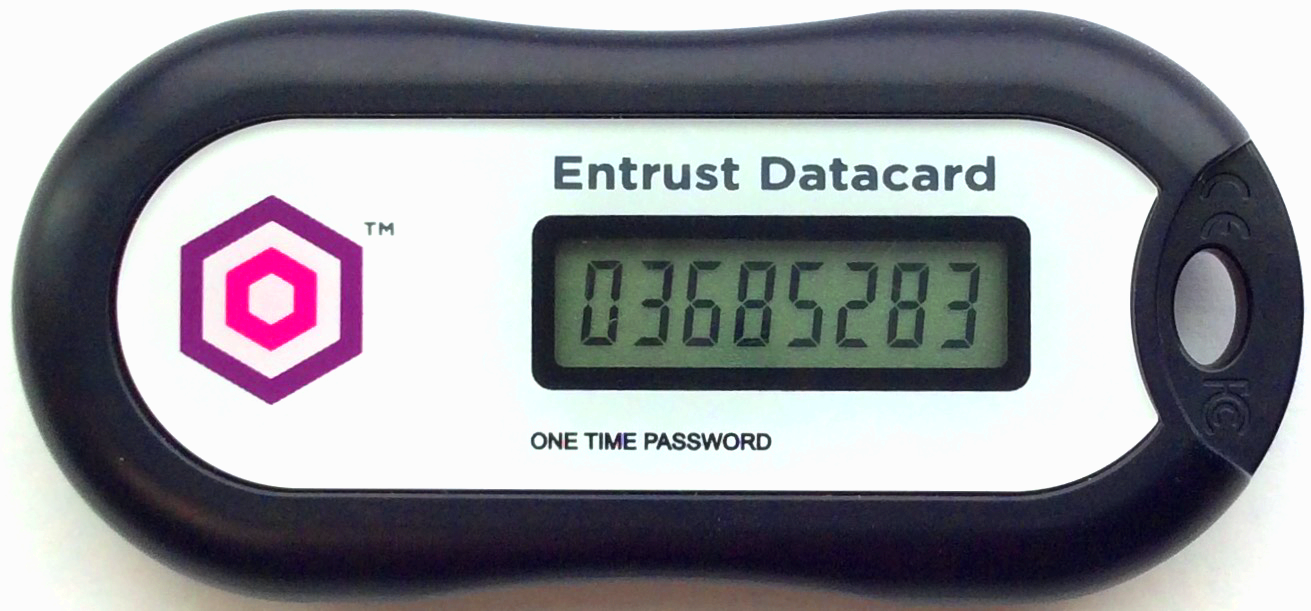
Entrust OTP tokens (pictured) and any TOTP OATH-compliant tokens that use the PSKC file format.
-
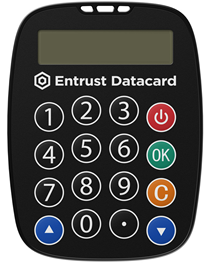
Entrust CR tokens. Entrust Identity as a Service supports the OTP and PIN unblock features of these tokens. Transaction signing will be supported in a future release. Challenge/response mode is not currently supported.
-
HID time-based (OT) and event-based (AT) models
-
-
All data associated with the tokens is migrated, except the lockout count. If a user had some failed token authentication attempts before migration, the full number of attempts is restored after migration.
-
A users' tokens are migrated using the Entrust Identity as a Service global setting (maximum 10 tokens), although the Entrust Identity as a Service account configuration might specify a lower number. For example, if an Entrust Identity Enterprise user has 15 tokens (hardware and software tokens combined), 10 could be migrated. All of the tokens in the active state can be used, but users could not get or create new tokens in Entrust Identity as a Service if they already have or exceed the maximum number of tokens allowed by their account settings.
-
Entrust Identity as a Service has fewer token states than Entrust Identity Enterprise. The following table shows how Entrust Identity Enterprise hardware token states are mapped to Entrust Identity as a Service token states.
Mapping of hardware token states
| Entrust Identity Enterprise hardware token states | Entrust Identity as a Service token states |
|---|---|
| -- | activating |
| pending, current | active |
| hold, hold pending | inactive |
| activating, canceled (not migrated) | -- |
Software tokens
- All data associated with the soft tokens is migrated, except the lockout count. If a user had some failed token authentication attempts before migration, the full number of attempts is restored after migration.
- Push authentication and transaction verification are supported for migrated mobile soft tokens. To update the Identity Provider URL (required for push authentication) used with Entrust Identity Enterprise to the one used with your Entrust Identity as a Service account, you will need an additional tool, the Mobile Identity Provider Migration Filter 2.0. For more information, see Update the IdP URL for mobile tokens.
- A users' tokens are migrated using the Entrust Identity as a Service global setting (maximum 10 tokens), although the Entrust Identity as a Service account configuration might specify a lower number. For example, if an Entrust Identity Enterprise user has 15 tokens (hardware and software tokens combined), 10 could be migrated. All of the tokens in the active state can be used, but users could not get or create new tokens in Entrust Identity as a Service if they already have or exceed the maximum number of tokens allowed by their account settings.
Mapping of soft token activation states
| Entrust Identity Enterprise soft token activation states | Entrust Identity as a Service token states |
|---|---|
| created, activation code generated (not migrated) | -- |
| -- | activating |
| activated | active |
| -- | inactive |
Mapping of soft token authentication states
| Entrust Identity Enterprise soft token authentication states | Entrust Identity as a Service token states |
|---|---|
| -- | activating |
| pending, current | active |
| hold, hold pending | inactive |
| activating, canceled (not migrated) | -- |
Knowledge-based authentication (Q&A)
- Lockout count is not migrated. If a user had some failed KBA attempts before migration, the full number of attempts is restored after migration.
- A user's locale is not migrated. Question and answer pairs are stored in unicode and they are exported as they are in Entrust Identity Enterprise.
- The default settings allow for migration of 50 Q&A pairs with responses of 255 characters. In the unlikely event that a user has this much KBA data, the next points describe how data in excess of Entrust Identity as a Service maximums is handled.
- A user's responses are truncated to 255 characters during migration. Entrust Identity as a Service limits the number of characters entered for a Q&A response so the user's truncated response will match the stored value.
- The maximum total size setting is not enforced during migration, but when a user updates Q&A pairs your Entrust Identity as a Service account settings are enforced and users might need to modify their responses.
Passwords
Entrust Identity as a Service supports migration of user passwords from Entrust Identity Enterprise.
During migration, Entrust Identity as a Service validates each named password against its current configuration. The migration process includes only named passwords that already exist in Entrust Identity as a Service and skips any others to prevent the creation of undefined password entries. If valid named passwords do not exist, Entrust Identity as a Service migrates only the default password.
Aliases
Entrust Identity as a Service supports migration of user aliases. Note that if progressive migration is used, the alias that triggers the migration from Entrust Identity Enterprise to Entrust Identity as a Service (for instance, EXPORT_<username>) is not exported. Since it is not exported from Identity Enterprise, it is not imported into Identity as a Service.
Grid cards
Migration of grid cards is supported.
- For both assigned and unassigned grid cards, the following data is migrated:
- user name
- serial number
- state (pending, current, hold, hold pending, canceled)
- creation date
- expiry date
- superseded date
- usage threshold indicator (unknown, none, warning, replacement)
- challenge count
- least-used cell usage count
- cell usage counts
- grid contents
- For preproduced grid cards, the following data is migrated:
- serial number
- group
- creation date
- comments
- grid content
- Grids in the Canceled or Expired state are not migrated.
Geolocation information
Migration of some geolocation information is supported. Both Entrust Identity Enterprise and Entrust Identity as a Service use geographic location information, along with other data, as part of adaptive (also known as risk-based) authentication, which helps assess the risk of authenticating a given user without requiring multi-factor authentication.
Entrust Identity Enterprise global policy settings for risk-based authentication are not migrated to Entrust Identity as a Service, however, explicit overrides of certain settings in specific user accounts are exported. Where there is no override, the Entrust Identity as a Service default settings are applied to the user account. The following table lists the policy settings for which overrides are migrated.
| Entrust Identity Enterprise setting name | Entrust Identity as a Service setting name | Entrust Identity as a Service default |
|---|---|---|
| Maximum Location History Size | Maximum Number of Locations | 5 |
| Check IP Address in Location History | Check IP Address | not set |
| Check Velocity | Check Travel Velocity | yes |
| Expected Locations List | Maximum Number of Expected Locations | 10 |
If you want Entrust Identity as a Service risk-based authentication policy settings to match those you have used in Entrust Identity Enterprise, modify the policy settings in Entrust Identity as a Service. For more information, see Manage risk-based authenticator settings.
Authenticators that are not migrated
The following Entrust Identity Enterprise authenticators are not migrated to Entrust Identity as a Service at this time.
- Biometrics (fingerprint)
- Certificates
- Mutual authentication images and phrases
- Out-of-band one-time passwords (OTP)
- Passkeys
- Personal verification numbers
- Machine secrets
- Smart credentials
- Temporary PINs
- Mobile digital IDs
Comparison of other Entrust Identity Enterprise and Entrust Identity as a Service data
The following table describes how other types of data supported in Entrust Identity Enterprise correlate to Entrust Identity as a Service.
| Feature or concept | Entrust Identity Enterprise | Entrust Identity as a Service |
|---|---|---|
| User data | User name, User's full name, User contact information, User state, User aliases. | This user data is included in the export file. If the existing user is synchronized through Active Directory, User contact information will not be imported into Identity as a Service. In other words, the contact information associated with the Active Directory account cannot be overwritten by an Entrust Identity Enterprise import. If an Entrust Identity as a Service user has not been synchronized with Active Directory, the contact information is imported. |
| User states | -- | If Entrust Identity as a Service user accounts are created through Active Directory synchronization, user states are determined by the Active Directory. User states are not migrated. |
| Entrust Identity Enterprise user states are Active and Suspended. | If Entrust Identity as a Service user accounts are created through a bulk operation or manually, user states are migrated from Entrust Identity Enterprise. Entrust Identity as a Service states are Active and Inactive. The Entrust Identity Enterprise Suspended state is mapped to Inactive in Entrust Identity as a Service. | |
| Groups | Groups are used primarily for administering users. | Groups are used to manage access control. |
| Every user must belong to a single group. If no other group is specified, users are part of the Default group. The default group is configurable in Entrust Identity Enterprise. | All Identity as a Service users belong to the default group and can optionally belong to other groups as well. | |
| User names are unique within a group, but not necessarily between groups. For example, the following is permitted: group1/jsmith and group2/jsmith. | All Entrust Identity as a Service user IDs must be unique. | |
| User access groups are supported. For more information, see "Configuring user access groups" in the Entrust Identity Enterprise Server Administration Guide. | User Access groups are not migrated. Entrust Identity as a Service does not support the concept of User Access Groups. | |
| Roles | Roles are used to assign administrative permissions to administrative users. Role information is not migrated to Entrust Identity as a Service. | Roles have the same function in Entrust Identity as a Service, but Entrust Identity Enterprise roles are not migrated. Create new roles for administrators in Entrust Identity as a Service. |
| Other information | Word maps for KBA are not migrated. For more information about this feature, see "Edit the word map file" in the Entrust Identity Enterprise Server Administration Guide. | Entrust Identity as a Service uses word maps that are independent of Entrust Identity Enterprise. |
Migration process overview
This section outlines the prerequisites, data-selection strategies, and overall process for migrating from Entrust Identity Enterprise to Entrust Identity as a Service.
Entrust Identity Enterprise prerequisites
- User names in Entrust Identity Enterprise must be unique.
- Your Entrust Identity Enterprise installation supports the migration feature. Entrust Identity Enterprise 13.0 fully supports migration. While limited migration has been supported since Entrust IdentityGuard release 12.0 Patch 132323, migration to the latest Entrust Identity Enterprise release or patch is recommended to ensure your installation has the most up-to-date migration capabilities. Migration is also supported from Entrust Identity Enterprise Virtual Appliance installations. As with non-appliance installations, migration to the latest available release or patch is recommended.
OR
- You have the Entrust IdentityGuard to Entrust Identity as a Service Migration Tool 3.0 if your Entrust IdentityGuard installation is Release 10.2.x through 12.0. An Entrust IdentityGuard Release 9.3 installation must be upgraded to 10.2.x or later before any Entrust IdentityGuard software can be used to facilitate migration to Entrust Identity as a Service.
Creation of imported user accounts in Identity as a Service
If you are not using Active Directory as your source of Entrust Identity as a Service users, user accounts and associated authenticators will be created in an Identity as a Service associated database when you import the Entrust Identity Enterprise users you previously exported. You do not need to create user accounts within Identity as a Service in advance of the migration.
If you are using Active Directory as your current source of Entrust Identity Enterprise users, ensure that Entrust Identity as a Service is configured to reference those same users. Once that has been accomplished and Entrust Identity as a Service has referenced those accounts, it is safe to import the information contained in the Entrust Identity Enterprise export file into Entrust Identity as a Service.
If your Entrust Identity as a Service users are synchronized with a corporate Active Directory server, account creation is not required. The associated Entrust Identity Enterprise user information is migrated, but will not override any contact information already associated with an Active Directory account.
User authentication during migration
After all users have been migrated from Entrust Identity Enterprise (formerly known as Entrust IdentityGuard) to Entrust Identity as a Service, the data is not linked in any way. Updating one system will not result in an automatic update in the other. If, for instance, you receive a new grid card with Identity as a Service, you would still have to use the previous grid card associated with Entrust Identity Enterprise when authenticating with Entrust Identity Enterprise.
- Knowledge-based authentication: This type of authentication can be used while migration is in progress, but users should be aware that changes to Q&A pairs in Entrust Identity Enterprise at this time will not be reflected in Entrust Identity as a Service.
- Time-based hardware token authentication: This type of authentication can work on both systems, as long as the device and system clocks are accurate and are the same in both Entrust Identity Enterprise and Entrust Identity as a Service. Event-based tokens should not be used with Entrust Identity Enterprise after migration has commenced. They will become out of sync if used in two unconnected systems.
Migration strategies
The size of your user population and other considerations might affect the strategy you use to migrate to Entrust Identity as a Service. For example, you might want to migrate data for a subset of users as a trial or to handle the migration process in a phased approach (progressive migration). Alternatively, you might want to migrate all Entrust Identity Enterprise data in one operation. There are a few things to note about each approach.
Progressive migration (Phased approach)
To migrate with a phased approach, you need to specify which user accounts to target in each phase.
Using Migration Tool 3.0 or Entrust Identity Enterprise 13.0 Patch 452872 onwards, it is possible to select subsets of users based on a flexible variety of parameters, such as the letters their user names begin with, the state of their cards, their geolocation information, or the vendor of their tokens. You can associate an alias prefix (for example, EXPORT_, EXPORTED_, IMPORTED_, and MIGRATED_) to smoothly guide and track each subset of users through the migration process.
A less flexible method of the phased approach is available using the latest Patch of Entrust IdentityGuard 12.0. If your organization uses multiple Entrust Identity Enterprise groups, you can use the group argument in the migration command to export data for all users and unassigned tokens and grid cards associated with the specified group or groups. As users must belong to only one Entrust Identity Enterprise group (and users should not be moved between groups during the migration process), this can be an effective way to migrate all users. You can also use a wildcard character (*) to select a set of usernames that share a common characteristic, such as all user names beginning with the letter "a".
Please note, if using the group argument to enable a phased approach, that if you use a means other than groups to specify users to migrate (for example, you specify selected user IDs), there is a possibility of users being included in more than one export file. If this should happen, be aware of the following behavior:
- If all data already exists in Entrust Identity as a Service for a user account that is later re-migrated, the data in the second export file does not update information in Entrust Identity as a Service. The event audit in Entrust Identity as a Service lists an error code for this user because the user already exists.
- The exception to the previous point is that if there is new authenticator data (for example, a new hardware token) in the user's Entrust Identity Enterprise account, the data for the new authenticator is migrated to Entrust Identity as a Service.
All-at-once approach
To migrate all Entrust Identity Enterprise data in one operation, do not specify the optional userid and group arguments in the export command. Data for all users, all unassigned tokens, and all unassigned grid cards is included in the export file used to migrate.
Process overview
The process of moving Entrust Identity Enterprise (formerly known as Entrust IdentityGuard) authenticators to the cloud-based Entrust Identity as a Service authentication solution consists of the following steps:
-
Ensure that your Entrust Identity Enterprise, Entrust IdentityGuard, and/or Entrust Self-Service installations are updated to their latest Patch.
-
If you are running an installation prior to Entrust IdentityGuard 13.0 and are using Migration Tool 3.0, you require a valid administrative user and associated password to carry out progressive migration. This administrative user must have the userSet permission. It is strongly recommended to create a separate administrative user for use by Migration Tool 3.0. If you have not done so, create a separate administrative user account for migration processes.
noteThe valid administrative user credentials requirement does not apply to the "all-at-once" approach.
-
Advise users that changes made to their Q&A pairs, grid states, or token states in Entrust Identity Enterprise during and after migration will not automatically update to Identity as a Service, and vice-versa. If a user changes their Q&A pairs on one system, they will end up with two distinct sets of Q&A pairs. Likewise, a grid card issued to a user from a system (such as Entrust Identity as a Service) can only be used for authentication with that same system.
-
Determine the users whose data you want to migrate to Entrust Identity as a Service, as discussed in Migration strategies. The migration procedures provide guidance for both strategies outlined in the overview.
-
Do not make any changes to user account information, especially user names, once migration has begun.
noteWhether you are using the Master User Shell or Migration Tool 3.0, be sure to use the computer that hosts your primary Entrust Identity Enterprise server.
-
If using Entrust Identity Enterprise 13.0:
a. Using the Entrust Identity Enterprise Master User Shell and the migration procedure described in this guide, a Master User for the system initiates the export operation and specifies the export file in which user data will be stored.
The export file is password protected. The password is generated automatically by Entrust Identity Enterprise during the export operation. The password is required later when importing the export file into Entrust Identity as a Service. The password can be viewed only by a Master User who is logged in to the Master User Shell.
b. The Master User uses the Master User Shell to display the password required to decrypt the export file.
c. The Master User uploads the file to Entrust Identity as a Service, runs the migration, and reviews the results.
d. If you plan to migrate mobile soft tokens to Entrust Identity as a Service, and your users use push notification and/or transaction verification with their soft tokens, you need to update the identity provider URL in the soft tokens. Update to the latest Entrust Identity Enterprise Self-Service Module 13.0 patch (452874 or higher) and see Update the IdP URL for mobile tokens.
-
If taking an all-at-once or by-group approach to migration and using an Entrust IdentityGuard 12.0 installation:
a. Ensure you are using the most recent patch of your Entrust IdentityGuard 12.0 installation.
b. Follow the procedure described for Identity Enterprise 13.0 above.
c. If you plan to migrate mobile soft tokens to Entrust Identity as a Service, and your users use push notification and/or transaction verification with their soft tokens, you need to update the identity provider URL in the soft tokens. Update to the latest Entrust Identity Enterprise Self-Service Module 12.0 patch (450438 or newer) and see Update the IdP URL for mobile tokens. Note that the Mobile Identity Provider Migration Filter built into the latest Entrust Identity Enterprise 12.0 installation updates the Identity Provider Address for all users. The process cannot be done progressively or by group from the installation. If you want to do this process progressively, you must download Migration Tool 3.0 and the Mobile Identity Provider Migration Filter 2.0, then use alias prefixes to identify user subsets.
-
If using an Entrust IdentityGuard 10.2.x or 11.0 installation, or for progressive migration with an Entrust IdentityGuard 12.0 installation:
a. Obtain and set up the Entrust IdentityGuard to Entrust Identity as a Service Migration Tool 3.0, as described in Setup for Migration.
b. Complete the procedures in that chapter that are relevant to your Entrust IdentityGuard installation. As with the feature built into Entrust IdentityGuard 12.0, Migration Tool 3.0 exports an encrypted data file for import into Entrust Identity as a Service.
-
Advise users of the change to the new system and remind them that account and authenticator changes made on one system will not update automatically in the other.
The export and migration steps are described in the migration chapters: