Configure the screen to lock when smart credential is disconnected (Windows)
If your mobile smart credential communicates with your computer using a Bluetooth connection, you can configure your computer to lock when you move out of Bluetooth range. The following procedure describes how to configure this loss of connection to lock your computer.
In a large deployment, this configuration can be completed by an IT administrator through a Windows group policy.
To configure your computer to lock when you move out of Bluetooth range
-
On your Windows computer, open a command window. For example, on Windows 8.1, click Start > Run. On Windows 10, enter
runin the search field. -
Enter the command
gpedit.msc. -
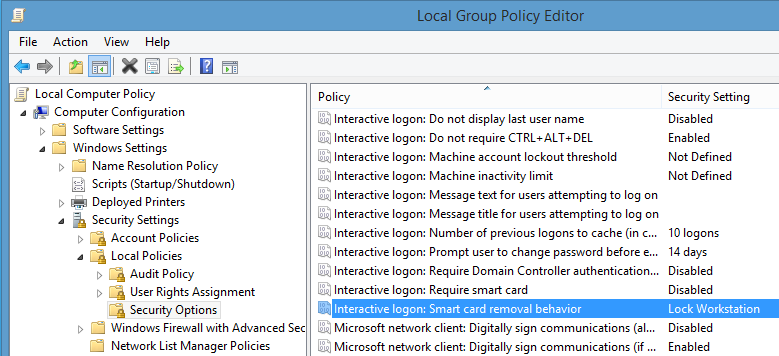
In the window that opens, expand Local Computer Policy > Computer Configuration > Windows Settings > Security Settings > Local Policies > Security Options.
-
Open the policy Interactive logon: Smart card removal behavior.
-
Select Lock Workstation from the drop-down list.

-
Click OK.
Now when you move out of Bluetooth range after logging in with your mobile smart credential, your computer locks.