Application Help
The tables below provide troubleshooting information for problems those setting up and accessing Web applications could encounter. The information is organized into four tables:
- Table 1: Add Salesforce application
- Table 2: Add Google Workspace application
- Table 3: Logging into Identity as a Service-configured applications
- Table 4: Delete an application
- Table 5: Configuring Entrust Identity Desktop for Microsoft Windows with Identity as a Service
- Table 6: CORS log in error
For IDaaS clients, including the Enterprise Service Gateway, that connect to IDaaS, you must configure your firewall to allow connections to your IDaaS account. IDaaS uses HTTPS on port 443.
Table 1: Add Salesforce application
| Problem | Solution |
The administrator is unable to locate and download an Identity Provider certificate on the Identity as a Service administrator portal when configuring the SAML Single Sign-On (SSO) Settings. | Contact support@entrust.com for assistance. |
The administrator is not being given the opportunity to create a domain name, and an existing domain name does not appear on the My Domain screen within the Salesforce account. | Consult the Salesforce help documentation. Note: Open the link above in a new tab to access the Salesforce help documentation. |
The Register Domain button is not clickable within the Salesforce account. |
|
Entering the Identity as a Service account URL, followed by
|
|
There are no user attributes available for the Salesforce federation ID value to be added to a user's account. |
|
The administrator does not know what to enter as the Single Sign-On URL when configuring Salesforce on Identity as a Service. |
|

Table 2: Add Google Workspace application
| Problem | Solution |
|---|---|
| The administrator is not sure what URL to enter as the Single Sign-On URL to configure their G Suite account for Identity as a Service. | Enter the URL of your Identity as a Service account, followed immediately by /api/saml/SAML2/SSO. An example would be https://example.us.trustedauth.com/api/saml/SAML2/SSO. |
Table 3: Logging in to Identity as a Service-configured applications
| Problem | Solution |
One of the applications configured for use on Identity as a Service cannot be logged in to by an administrator or user. | Read through the steps outlined for configuring the specific application for Identity as a Service (see Add applications to Identity as a Service applications). As you read through the steps, confirm the following:
For additional assistance, contact support@entrust.com. |
Table 4: Delete an application
| Problem | Solution |
The application still appears to be configured after being deleted from Identity as a Service portal. |
|
Table 5: Configuring Entrust Identity Desktop for Microsoft Windows with Identity as a Service
| Problem | Solution |
"405 Error" displayed on Web browser when validating connection between Entrust Identity for Microsoft Windows and Identity as a Service using a Web browser. Note: The connection is validated by entering the URL address of your Entrust Identity Desktop for Microsoft Windows account into a Web Browser.
| This error message is expected. The Identity as a Service gateway responds by displaying a 405 error on an Internet Explorer, Chrome, or FireFox Web browser once a connection is established between Identity as a Service and Entrust Identity Desktop for Microsoft Windows. |
"White Label Error" displayed on Web browser when validating connection between Entrust Identity Enterprise for Microsoft Windows and Identity as a Service using a Web browser. Note: The connection is validated by entering the URL address of your Entrust Identity Desktop for Microsoft Windows account into a Web Browser.
| The Entrust Identity Enterprise for Microsoft Windows account URL is not recognized.
|
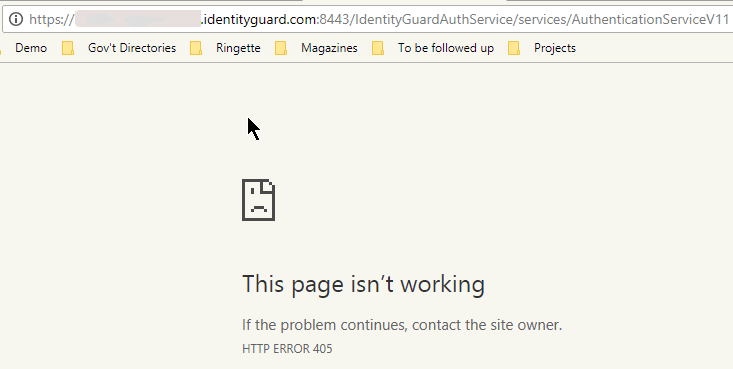
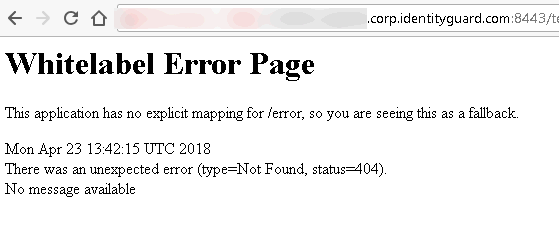
Table 6: CORS log in error
| Problem | Solution |
|---|---|
During logging in the browser shows the following error: {"errorCode":"Invalid_cors_origin_in_request","errorMessage":"Invalid_request_origin.","parameters":null} and the origin header shows Origin: null in the request, which causes the error. | Change the setting Referrer-Policy to strict-origin-when-cross-origin |
For additional assistance, please contact support@entrust.com.