Import grid cards
Use the Import Grid Cards bulk operation to import grid cards and associate their contents with users or add them as unassigned grid cards. You also assign grid cards. This section provides details to import grid cards in bulk. See Bulk assign authenticators for more information on bulk assigning grid cards.
CSV file format
The following is a sample CSV file to help you get started:
Card \#,serialNumber,userId,state,A1,B1,C1,D1,E1,F1,G1,H1,I1,J1
1,12345,user1,active,5F,NN,44,67,HC,3X,D9,67,D3,98
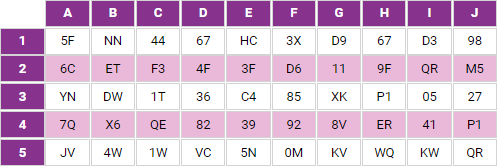
Download a sample file:
For assigned grid cards: BulkImportGridsAssignedSample.csv
For unassigned grid cards: BulkImportGridsUnassignedSample.csv
Import grid cards
-
When importing grid cards in bulk, you can upload the following files:
-
A CSV file that includes
Card #,serialNumber,userID, andstatecolumns followed by the row-column indicator for each row and column. -
The column order is mandatory. They must be in this order:
Card #, serialNumber, userID, statefollowed by grid card contents. See the following example: -
If a
userIDis not specified, the bulk operation associates the grid card to the user or adds unassigned grid cards. -
Identity as a Service supports the following grid card states:
-
ACTIVE The grid card has been used at least one time. The last used date of the imported grid card is set to the current date.
-
INACTIVE The grid card cannot be used at this time. The last used date of the imported grid card is set to the current date.
-
UNASSIGNED The grid card has not been assigned to a user. This state is only valid if a
userIdis not specified for the grid card. -
PENDING The grid card can be used for authentication. The first time the user successfully authenticates with the grid card, the card state changes to ACTIVE.
-
CANCELED The grid card can no longer be used. Canceled grid cards count toward the maximum number of grid cards a user can have. Canceled grid cards:
- Can be deleted
- Cannot go back to another state
- Cannot be used for authentication
- Cannot be unassigned
If not specified, the default state is
PENDING.
infoThe
statecolumn is not case-sensitive. For example,Active,active, andACTIVEis recognized. -
-
-
When importing unassigned grid cards, the
statecolumn is ignored. -
If an existing unassigned grid card serial number exists for the one being imported and the grid card is being associated with a user, the import will take place if the grid contents is the same.
-
Entrust Identity Enterprise grid card states can be used when importing grid cards into Identity as a Service. The Identity as a Service import grid operation converts the grid card
stateas follows:Entrust Identity Enterprise State Identity as a Service State CURRENT ACTIVE HOLD INACTIVE HOLD PENDING INACTIVE PENDING PENDING CANCELED CANCELED -
When importing grid cards with a state value of
ACTIVE,INACTIVE,CURRENT, orHOLD, the last used date is set to the current date to identify the card as being previously used.
Grid card attributes
The following table summarizes supported Identity as a Service grid card import attributes.
Table: Grid card import attributes
| Attribute | Description | Header Value | Required |
|---|---|---|---|
| Card # | The grid card number. This is not used during a bulk import. | Card # | no |
| Serial Number | The serial number of the grid card. | serialNumber | yes |
| User ID | The user ID to associate the grid card to. If no user ID is provided, the grid card is imported in an UNASSIGNED state. | userId | no |
| State | The state of the grid card. Supported values: ACTIVE, INACTIVE, UNASSIGNED, PENDING, CANCELED, CURRENT, HOLD, HOLD_PENDING. Default value is PENDING if userId is specified; otherwise the state is not used and the grid card is loaded as unassigned. | state | no |
Bulk import grid cards
To import grid cards in bulk
-
Click > Bulk Operations. The Bulk Operations page appears.
-
Click . The Add Bulk Operation page appears.
-
From the Operations drop-down list, select Grid Cards.
-
From the Actions drop-down list, select Import.
-
Select the File Delimiter Pipe (|) or Comma (,). The File Delimiter type identifies the character in your CSV file used to specify the boundary between each user or group name.
noteIf a data field requires a delimiter value or white space, put quotation marks around that field. If you do not, the information will not import.
-
Click Include Group for Unassigned Grids. If selected, unassigned grids from an Entrust Identity Enterprise CSV file are assigned to groups based on the group column in the file.
-
Set the Maximum Number of Retries to set the number of bulk import attempts if it is not immediately successful. The default value is 5. This setting prevents an endless number of retry attempt if the operation fails.
-
Enter a unique Name that identifies the operation in the Bulk Operations List page.
-
Enter a Description that describes the purpose of the operation.
-
Click Upload your CSV file and browse to select the bulk operations file.
-
Click Initiate and Upload.
-
The Start/Stop dialog box appears.
-
Click Start. When the upload completes, a Finished prompt appears.
-
Click Finished. You are returned to the Bulk Operations List page. Your bulk operation appears in the list. You can verify the status of the bulk operation.
-
To see a summary of the upload, click to view the details of the bulk operation, including any error information.
-
Click in the Refresh column to refresh the status of a bulk operation. This option appears only when a refresh is available.
The imported grid cards appear on the Grid Card page.
Edit group membership
If you need to change the group membership for a grid card, do the following:
- Click > Resources > Grid Card. The Grid Cards page appears.
- Click next to the grid card. The Edit Grid Card dialog box appears.
- Add or delete groups as required.
- Click Submit.