Create the Digital Signature certificate template
-
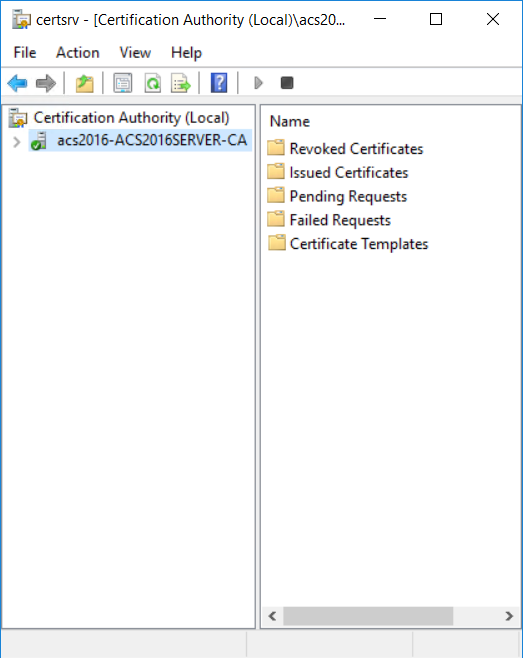
On the Microsoft CA machine, go to Start > Windows Administrative Tools > Certification Authority.
-
Click your Certificate Authority to expand the root folder.
-
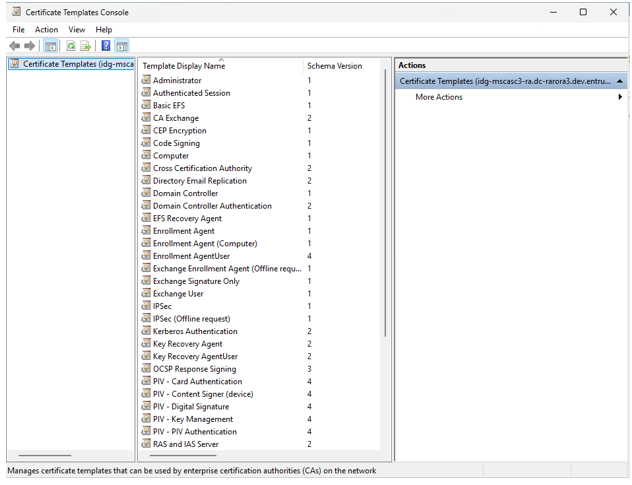
To set the user permissions, right-click Certificate Templates, and then select Manage. The Certificate Templates Console appears.
-
Scroll the template list, right-click the PIV - PIV Authentication template and select Duplicate Template. The Properties of New Template dialog box appears.
-
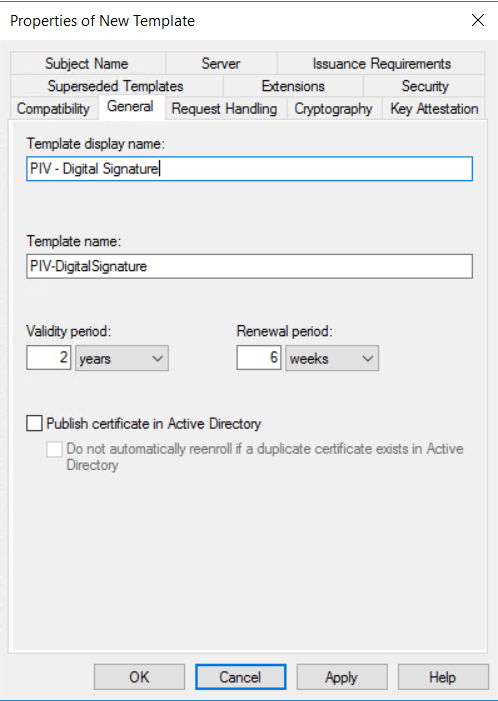
Click the General tab, and configure the following settings:
- In the Template display name field, enter PIV - Digital Signature. The Template name field is filled in automatically with the template display name (with no spaces).
- Optional. Select Publish certificate in Active Directory.
-
Click the Request Handling tab.
-
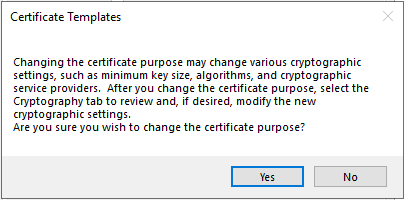
From the Purpose drop-down list, select Signature.
When asked to confirm the change, click Yes.
-
Click the Extensions tab.
-
Select Application Policies, and then click Edit. The Edit Application Policies Extension dialog box appears.
-
Add the Secure Email policy to the list of application policies, as follows:
- On the Edit Application Policies Extension dialog box, click Add. The Add Application Policy dialog box appears.
- Scroll the Application policies list and select Secure Email, and then click OK.
- On the Edit Application Policies Extension dialog box, remove the application policies that are not required.
- Select Any Purpose and click Remove.
- Select Client Authentication and click Remove.
- Select Smart Card Logon and click Remove.
- Click OK to close the dialog box.
-
In the Extensions tab, select Issuance Policies and then click Edit. The Edit Issuance Policies dialog box appears.
- Select
id-fpki-common-authenticationand then click Remove. - Click OK.
- Select
-
If you selected to Publish certificate in Active Directory, complete the following:
- Click the Issuance Requirements tab.
- Select The number of authorized signatures and enter 1 in the text box.
- From the Policy type required in signature drop-down list, select Application policy.
- From the Application policy drop-down list, select Certificate Request Agent.
-
Click OK to close the open dialog boxes to return to the Certificate Templates Console.
The PIV - Digital Certificate certificate template is added to the list of templates.