Manage grid card authenticators
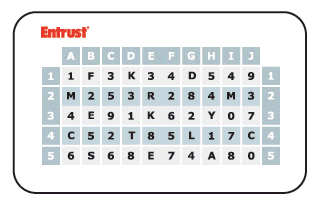
Grid authentication uses cards with a grid as the authentication lookup tool. When asked to authenticate with a grid, the challenge presents the user with coordinates, for example, B3, H1. The user references the challenge coordinates on their grid card and responds by typing the corresponding values.
Typically, your organization creates grid cards, distributes them to users, and then assigns the grid card serial numbers to users. Users can have multiple grid cards assigned to them and they can also self-register their grid cards in the User Portal.
An IDaaS account can have a maximum of 5000 unassigned grid cards.
Example
A grid card is similar to the one shown in this example. Using this grid card as an example, the correct response to a grid challenge of B3, H1 is E 5.
Prerequisites
- You must have a role with User Grid Card Management permissions to manage grid cards.
- Configure grid as an authentication option for IDaaS (see Create and manage resource rules).
- Customize the Grid Card authenticator settings, as required.
- Create and assign grid cards to users.
Grid card state
IDaaS supports the following grid card states:
| State | Description | Authentication use | Notes |
|---|---|---|---|
| ACTIVE | The grid card has been used at least one time. The last used date of the imported card is set to the current date. | Yes | Not applicable |
| INACTIVE | The grid card cannot be used at this time. | No | Not applicable |
| UNASSIGNED | The grid card has not been assigned to a user. | No | Not applicable |
| PENDING | The grid card can be used for authentication. After the first successful authentication, the state changes to ACTIVE. | Yes | Default state if not specified |
| CANCELED | The grid card can no longer be used and counts toward the maximum number of grid cards a user can have. | No | Can be deleted; cannot return to another state; cannot be unassigned |
The State column is not case-sensitive. For example, Active, active, and ACTIVE are recognized.
Migrating Entrust Identity grid cards to IDaaS
To migrate Entrust Identity grid cards to IDaaS, use the instructions in the Entrust Identity Enterprise to IDaaS Migration Guide available on Entrust Trusted Care. Once logged in to Trusted Care, do the following:
- Click Products.
- On the My Products page navigate to Identity Enterprise > Identity to IDaaS Migration Tool.
- On the Identity Enterprise to IDaaS Migration Tool page, click Documents.
- Click Download next to Migration Guide: Entrust Identity to IDaaS.
The Entrust Identity Migration operation converts the grid card state as follow:
| Entrust Identity State | IDaaS State |
|---|---|
| CURRENT | ACTIVE |
| HOLD | INACTIVE |
| HOLD PENDING | INACTIVE |
| PENDING | PENDING |
| CANCELED | CANCELED |
Topics in this section
Settings
Use this procedure to update grid card settings for your account. These settings apply to all grid cards assigned to users. An IDaaS account can include up to 5,000 unassigned grid cards.
Create or assign
When you create a grid card for a user, IDaaS generates a serial number that the user can use to register the card. To assign an existing grid card, enter its serial number. Users can also create their own grid cards from the User Portal.
Manage assigned cards
You can manage grid cards for an individual user or multiple users simultaneously. Assigned grid cards can be:
Create unassigned cards
The maximum number of grid cards that you can create at one time is your user entitlement quantity multiplied by 3 or 100,000, whichever is lower. If you do not have any user entitlements or your entitlements have expired, you cannot generate any grid cards.
Manage unassigned cards
When you unassign a grid card from a user, it moves to the unassigned list and can be reassigned to another user. You can also filter by state to view assigned and unassigned grid cards, and export unassigned grid cards for bulk operations.
Search and export
You can search grids using filters and export them to a CSV file for use in bulk operations.